you for joining. My name is Matt Schneider. I am director of product marketing for LucidLink.
I am based in Brooklyn, New York City, and delighted to be here with my close colleague, Steven Nijelski, who's based in Arizona.
Steven is a, senior solutions engineer video lead.
He's also very good with DaVinci Resolve. So I have asked him to come on to our show today and explain to me how does collaborative, workflows operate when using Resolve and LucidLink in a simple way that's easy to digest for pretty much anyone. And he's also gonna begin with a very general overview of LucidLink for those of you who haven't used LucidLink before.
Before we get to that, I just wanna quickly note what is magic hour? So magic hour is actually a pretty new live event series that we started here at LucidLink. Started this about a couple of months ago. We have a few under our belt already.
This is a weekly learning experience focusing on a specific tool or workflow.
Part of the design of magic hour is LucidLink invites artists, technicians, technologists, collaborators, creators of any kind onto the show to really talk about what they are passionate about. In some respect, LucidLink is taking an intentional back seat, helping to connect the dots and helping to make the magic happen. But in this session, in this hour, this is all about the artist, the editor, the colorist, the audio mixer, and his or her tool of choice and what they care about, what they're passionate about, both in terms of the tool and the workflows that they rely on every single day. We try to do these just about every Thursday. It might be just me doing a demo. It might be, inviting a colleague such as Steven to talk about a particular workflow, with LucidLink and another tool.
Or we also invite, artists and partners and technologists outside of LucidLink to come and talk about whatever is most important to them. So again, we try to hold host these pretty much every Thursday, And we invite people to join regardless of what your level of experience is, either with LucidLink or with the tool that we're featuring featuring. You could be an expert. You could be brand new. Maybe you've never heard of LucidLink. Here's a great opportunity to get a general overview on what it's about and learn how the workflow of LucidLink extends into front end applications that you use, every day.
I do want to remind you that if you are new to LucidLink and you haven't used it before, we do have a free trial that you can sign up for at any time, including today. The trial is fourteen days long by default. You can just go to lucid link dot com, sign up for a free trial, plug in your email address, and get going. It's very easy to get started. If fourteen days is not enough for a trial, we can certainly talk to you about extending the trial. And, of course, we're always available to answer any questions that you have either about LucidLink or how it works with creative tools.
Again, I'm delighted to welcome my colleague, Steven, as I said, based in Arizona, if you're just joining us.
And on that note, I think we can jump into the demo. As I if you're just joining us, we're gonna cover LucidLink, as a whole from a high level, provide a general overview in particular for those who've never heard of it or haven't used it. And then Steven is gonna jump in, and show how DaVinci Resolve in particular works in a collaborative workflow, using LucidLink. So on that note, Steven, I'm gonna hand the baton to you. Please take it away.
Okay. Thanks a lot, Matt. Welcome, everybody. Today, we're gonna talk about one of my favorite workflows, which is, DaVinci Resolve collaboration on top of LucidLink Filespaces technology.
And, hopefully, by the end of the the session, you'll see why, I I love it so much. It's just a really, really natural fit.
When when it was announced, the the cloud version of their collaboration feature a couple years ago, I immediately, saw the connection and and tested it, like, within five minutes after their they had the beta version. And it just instantly worked on top of LucidLink just out of the box. There wasn't anything extra special you have to do. But, so we'll get into the a little bit of LucidLink first, and then we'll get into some resolve, like Matt said, on top of LucidLink, working together in a cloud native, like, no hardware, pure cloud, collaboration environment, which is really cool. So I'll go ahead and share my screen, and we'll get into the question of what is LucidLink, for those of you who are new to us. So LucidLink, we call ourselves a storage collaboration platform.
And what that basically means is we make cloud object storage look and act like a local hard drive. So what we're looking at here on my screen is a, a Mac that I'm physically using, and this is a when you sign into LucidLink, you get an icon on your desktop that looks like a hard drive. When I click on that and open it up, you'll see it's baked right into my operating system. I've got files.
I've got folders. It's extremely familiar. So any if you're onboarding new users and things like that, it's not much more complicated than a hard drive. So if you say, do you know how to use a hard drive?
Yes. Okay. You're you're you're most of the way there. So you'll notice inside of here, I've got all these files and folders.
These are in the cloud, but they look again and act like local files. So even to the point where I can go to a folder full of some demo footage, and I can just highlight this shot here, double click on it, opens up in QuickTime.
I I can just drop my playhead halfway in the middle of it and hit play. You'll notice it starts playing from the middle of this shot.
Right? I didn't have to download this first. This was coming directly from the cloud, and I didn't need the entire clip. If I pause right there, I just played maybe ten seconds in the middle of this shot. That's all I ever need. And LucidLink technology is able to deliver just the portion of the file I need at any given time, without having to push or pull or download and synchronize media. And that's really kind of the magic, that that makes so many of the other workflows possible.
One of the ways I like to show LucidLink in action is I show it with more than one user. Right? So here here's the Mac that I'm physically using right now. If I jump over to this screen, this is now another machine.
And later, we're gonna Matt and I are gonna be collaborating as well on on the resolve side. But, for this portion, I like to show an admin user and a standard user. So my Mac user is gonna be my standard creative user. Let's call it a freelancer in this scenario.
And this user running Windows, could be on Linux as well, is gonna play the role of the admin. You'll notice this, well, if you really sharp eyes, you may notice that this is actually running out of Germany. So it's a machine I'm remoting into just so I can show you multiple users collaborating over distance.
You don't have to use any kind of remote desktop technology to use LucidLink. This is just just for the demo so I can show you two different users in action. So as my admin user, you'll notice this user has a lot more folders. I've got, like, thirty some folders, at my disposal because an admin can automatically see everything. You'll see my my freelance user just has these four folders.
But let's go ahead and navigate to a folder that we both have permission to see, and that's gonna be this upload demo folder, which you can see is empty.
I'll jump over here, navigate to the same folder on my Windows machine.
That's my folder, and then upload demo. There it is. It's empty. And now there's a file on my desktop in Germany. Now if two users, you know, halfway around the world need to look at the same file, you're typically going to be shipping a hard drive, uploading, and then the other person has to download, so now you've kinda waited twice.
You you I'm sure I had to be in those situations before. What it looks like in a LucidLink environment, I'll take this file here. It's about a five hundred meg file. It's not huge, and I'll drop it into the file space.
Right? There's nothing extra special I need to do to get it in. I just drag and drop because it acts and and behaves just like a hard drive. You will see this little icon here, this up arrow.
And on the little dashboard, you'll see that this five hundred meg file is starting to upload, so that number is gonna count back down to zero. Meanwhile, back in Arizona, my freelance user sees something happening. I see the file. And I'm not only do I just see the file, but I can actually open this file.
This is this kind of thing that shouldn't be possible if you're used to any other cloud technology. I'm just gonna go ahead and start playing it.
So here's a file that I'm playing. Jumping back to Germany, it's not even halfway done uploading from Germany, and I'm actually playing the beginning of the file right now. And the reason that this works is because LucidLink uses a really unique technology where we take the large files. In this case, it's only five hundred megabytes, but it could be, you know, multi terabyte file or something.
And this file gets broken up into tiny little blocks. Our service keeps track of all those blocks and knows which blocks go to which file. And then so as an end user in Arizona, when I go to play the beginning of the file, the beginning of the file is there. So that that's all I need.
I don't need the entire thing. You may be wondering if I tried jumping to the end of the file, would that work? It wouldn't. It would get stuck and just sit there on a on a black frame, because that part of the file in this instance hadn't made it into the cloud yet.
So that's a really cool way to show how unique our technology is. Probably a more impactful about content that's already in the file space? So let's say this this user in Germany, just needs to reassign an editing project to a different freelancer. Right? So here again, I'm back to my four folders.
Let's go back to Germany. I'm gonna go into the admin control panel, which is a very simple UI, and I'm gonna pull up the username of my aptly named Arizona freelancer. And you can see that I've currently have some permissions and groups that I'm a member of here. And let's just go ahead and add myself to another group called demo freelancer.
Soon as I grant permission to something, if I jump back quickly enough, I'll see those folders just up here. Right? So instead of sending content to anybody, instead of me having to download or synchronize all of these, The folders just all appear instantly to me. And now I can go in, and I can navigate into a project. I can open, you know, content, immediately access things.
A lot of times, I'll go in and and show a premier library at this point in time. But, today, we're gonna focus on Resolve, which uses a different as those of you who use Resolve know, it's not based on a project file like this. It needs to run off a project database. So we're gonna show that, slightly different version of that. But that's how quickly you can get access to a whole bunch of content. And, again, I did not have to download or synchronize any of this. I can just immediately start accessing it, and just the portions of the files that I use are sent to my system on demand at that time.
So that's kind of the core.
And, actually, I should show you just just so you can kinda see. I'll show you the opposite of that. I'll I'll go ahead and revoke that access, and we'll see how quickly all those folders are gone. So you you grant, you revoke access. That's our version of, you know, instead of sending, and sharing that way, you just grant access to things. So for the purpose of our demo, I'm gonna go ahead and regrant access to that demo group so that I have everything I need.
Alright.
There's a lot of other really cool technology inside LucidLink Filespaces. One of them is called snapshots. You may be wondering if you notice how real time collaboration, I'm seeing things appear. I'm seeing, you know, files being accessible immediately.
Well, things like deleting and renaming and moving files are also instantaneous. So if that ever happens, accidentally, you can go into your snapshot history, and recover files, get older versions of files, and things like that. It's right at your fingertips. It's very accessible.
Any end user that has permission to a folder in the in the current file space can go back in time to previous versions of that same folder, in the snapshots, which is really great.
I guess I'll pause here for just a moment to see if there's any LucidLink specific questions before we get into the, resolved portion of the demo.
There's been a few questions that I've been answering live in the chat. One good question was, is this really is what you showed, Steven, is that really the same as a growing file? And my answer was, it's largely analogous. It's the same kind of concept.
I made the distinction that the operating system, whether it's Windows or Mac, isn't quote, unquote aware that the data is growing. It thinks it's a closed file, which is largely why it, allows the file to be played. A nonlinear editing tool, for example, there's special application functionality baked into be aware that the data is still growing. Would you say that's a right an accurate distinction?
Yeah. Yeah. Very much. And we do have, real world customers that use a growing file workflow with LucidLink. So you can be capturing, you know, via some sort of ingest software, and then you can have people in other locations editing highlights from a live event, for instance. That's one of the common use cases where we see that, you know, from an event that's still going and still being recorded.
So it's pretty exciting.
I did see a question in the chat about STARLINK.
I have actually tested it, LucidLink, over STARLINK connection before. It does work. You know, bandwidth is important. So I'll kinda address this question from a broader perspective to to, you can you can access over, you know, phone hotspot if you need to.
The the more bandwidth you have, of course, the better. And where kind of the rubber hits the road is it comes down to what are you trying to actually do. So if I go in, let's just say it's in my timeline in resolve, and I hit play and I try to start playing a file that's, say, a hundred megabits per second. Right?
LucidLink gives you exactly what you put in. So if the source file is a hundred megabit per second file and then I go to play that file, it will, attempt to to pull that much data from the cloud in real time. Now there is a so if my bandwidth is greater than a hundred megabits per second, generally speaking, that's gonna work flawlessly. It will play smoothly, and and all is all is good.
Right? Every everyone's happy. Now what's really cool is besides the direct from the cloud streaming technology, Lucidic also has what's called a cache, which I haven't mentioned yet. So that was a good a good lead in, with your question there.
So picture this.
Let's say there's an hour long file, and I drop my playhead in the middle of it, and I start playing fifteen seconds of that of that file. That's an hour long. As I as it's playing through, just the blocks pertaining to where my playhead is are coming down from the cloud, but then they land in my Lucid cache.
Right? The Lucid cache is gonna retain those blocks as long as it can, and the larger you make the cache, the longer history you're you have essentially of, playback.
Now when you're editing, of course, you go and you never play anything once. You always go in, you make a tweak, and you play it again and again and again and, you know, hundreds of times sometimes. All those subsequent playbacks are now actually coming out of your local SSD.
So part of our technology really limits the demand or the the strain that you put on your Internet connection. So even though you might think, oh, it's it's gonna be impossible to edit, you know, over the cloud, that that caching technology is a really crucial part of making the whole experience really, really smooth. And if you think about how, generally speaking, when you edit, you add things incrementally, Here, I'm adding one new shot. I played through that.
Now that's in my cache. Add another one. I played through that. That's in my cache.
So it sort of naturally builds, and and your cache sort of fills up with with the content that you're adding and and making modifications to. And so there's a very natural way that in which that just sorta makes it all work really well. So that's why we really encourage people to try it because I know I I am right where if you're skeptical, I'm right where you were, you know, three years ago. The first time I heard of LucidLink, I was like, there's no way that's gonna work.
Right? There's no way the cloud will let me edit, for instance, four k media or above. And today, I'm actually gonna show you some twelve k, on LucidLink.
But try it out. Give it a shot because, it's pretty amazing what it can do. And we'll get into some of the other technology too besides just caching. We have something called pinning as well.
Alright. Does the cache remain? Yes. So the Lucid cache, anything that hits your Lucid cache will retain as long as it possibly can.
And the way that it works kinda picture I picture it like a conveyor belt. Right? The newest stuff comes in, so it's a first in, least recently accessed out. So if my cache is set to fifty gigabytes, is once I've moved through fifty it's my fifty first gigabyte of activity over any span of time, the oldest stuff just automatically falls off at the end.
So it's gonna retain it's kind of just like a buffer. Right? Anything that I'm working on, the most recent stuff, if I open a JPEG, that's now in my cache. Open audio file, that's in my cache.
Any kind of file, any portion of a file that you access, that stuff goes in your boosted cache and just helps everything playback smoother and faster.
Alright. Great questions, everybody.
If you'd like, Steven, you could, continue with the the overview. There's another question in the q and a, which I'm happy to field as you as you continue.
Excellent. Okay. Well, hey. I think it's time. Let's jump into the resolve portion of it because it's gonna naturally lead us into some of those questions that we wanna talk about. It's gonna lead us into caching, pinning, and some of the other UI things. So I'll go ahead and share my screen one more time.
And let me fire up resolve.
We're still on eighteen six, by the way. I know Matt is as well. I know nineteen just came out. I'm probably gonna update as soon as this event is over. Didn't wanna do it beforehand because, you know, you don't wanna break things right when you're about to do a live event.
But, so for those of you who are new to resolve, we're gonna show some of the basics. I'm not gonna go super deep, and there's probably many of you on the call who are way better at Resolve than I am. But I'm gonna show you the part that that, I get really excited about, and that's the ability to collaborate in real time with multiple people. So, when Resolve, I think it was two, two and a half years ago, announced the the cloud version of their their project server, that was pretty exciting, and that's where this tab came from.
So when you first launch Resolve, you know, you've got the option you know, for a long time, you've had the option of a local database or a network database. What's new is that new ish two and a half years ago, this this third tab now, which is the cloud portion of the database. So that's what we're gonna work in today. I have a a project server that's spun up on, Blackmagic Cloud, you know, hosted project server.
I already invited Matt to it ahead of time. So once I go ahead and choose we're gonna we're gonna use this one called Europe here today. So I'm gonna open that one. You'll notice that this one's been activated for multiuser collaboration.
So I'll go ahead and open this timeline, this project. And, and actually, I should pause here for just a second because even before project server collaboration in real time was possible, you could still use LucidLink and Blackmagic, DaVinci Resolve together, but you had to use it in the context of, like, I'm gonna export my DRP into Lucid Link and then another user rep should import that into their local database. They could do some work. So they're kinda doing that, like, import export workflow, which is already cool because it gives you all the ability to use loop resolve on top of LucidLink.
But now this is where it gets really cool. Alright. So I've opened this cloud hosted project. Right?
And I'm just in the media tab right now. You can see I've got a few different shots that are in my timeline. And now I wanna have Matt go go ahead and, share your screen. Let's have you sign in to the same exact project.
You got it. Will do. Alright. Steven, can you see my resolved interface?
Not yet. I'm still seeing mine.
I'll go ahead and I'll just go ahead and stop mine and see if that helps.
Oh, you know what? It's there. I just didn't click. I forgot. Zoom, you can click.
There's for Zoom, there's two options now. You can click one or the other. So click on Matt's screen if you're if you're looking at both now. So he's looking at logging into the same, project server that I invited him to, and now he's gonna go ahead and double click on that Europe, project as well.
This one here, Steven?
Yes. Exactly. Yep. You got that one highlighted. Yeah. Just double click on that guy. And perfect.
Now we can see the same thing. So, what I'm gonna have you do at this point is go in at the bottom of the screen. Click on the edit tab.
Mhmm. And then double click on the euro. It's at the top of the left list there.
There you go. So you're gonna open that sequence.
Mhmm.
Okay. Perfect. Now you see here up up, on hovering over the euro thumbnail on the for the project, sequence, you can see now he's got a check mark. Right?
So that's saying he's got that active. I'm gonna go ahead and share my screen one more time. We're gonna be jumping back and forth between our screens quite a bit here. So so bear with us.
And now when we look at my screen, if I go to the edit tab and I can see that next to and I I've got a different view. Let me go to the same kind of thumbnail view that Matt was using.
There we go. So over the euro timeline, I see an MS. Right? So this is showing that someone with those initials has this project open.
It actually will let me look at the the sequence, but I can't go in here and do any editing. Right? It's it's telling me that, it it's basically, like, anything I try to do won't work because it's already owned by somebody else. The red check mark tells me that I'm I have it open in kind of a view only mode, but that's not letting me, you know, do any modifications.
So that's part of that locking component, which is huge. You don't wanna be having two people work over on the top of each other's work. Couple other things I wanna show you right now, in the bottom right corner of the section, of the screen, I can click on this little, like, two people icon. And now I can see, besides myself, I can see that there's Matthew Schneider in here, and he's connecting on a Mac.
That's already pretty cool. I can have a little glance if there's multiple users. I see the whole list of users that are in there.
Again, all of this without leaving the the resolve UI. There's also even a little chat bot button here. So I can say, I'm going to do some I can type color work.
I'll send that note to Matt just to let him know, give him a heads up, and then I'm gonna head over to the color tab. So on his screen, you'll you know, if you're looking or toggling over to Matt's screen, you'll see that little, like, icon pop up in the bottom. You can check my notes if he wants to.
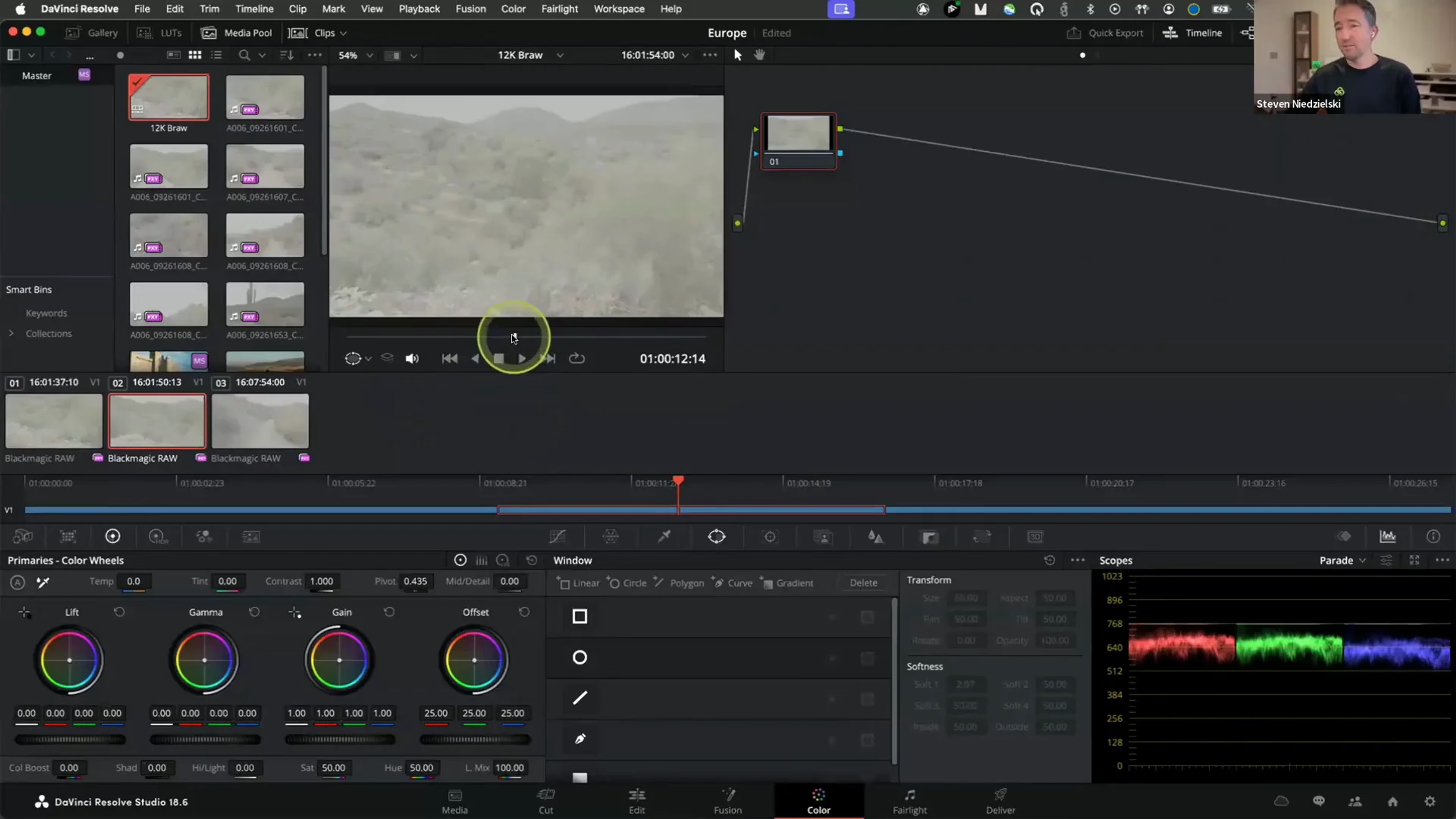
Alright. So, if you're looking at my screen, you'll see I'm now in the color section of the, UI. And let's go ahead and just do something. I'll take this, shot number five, and I'll make it look crazy just so you can see a really obvious, you know, horrible color grade that I put on it. And, so now that I've applied some color shots, now let's jump over to Matt's screen. So let's look at his and I'm gonna do the same thing so I can see what that looks like in real time.
And since I'm not I'm not fully trusting Zoom here, I stopped sharing, so let me reshare.
Okay. Yeah. Let's just do it that way. Yeah. So we'll go to your screen. I stopped sharing as well.
Now you'll notice since I went in and and did, an adjustment on, one of the shots in the color tab, while Matt is still in the edit tab, he sees this little, refresh icon that shows up up there, but it's also hovered over the final shot of his sequence. So he can click on that and do the update.
Sorry. In the upper right corner of the of the, yeah. There you go.
Click here? Okay.
Yep. Okay. And that should now load. Now go ahead and put your play head over the final shot, and there's my horrendous color grade that I did.
So you can see now now notice we did that simultaneously. Right? I was in the color tab while he was in the edit tab, and he's able to just see and and if he chooses to update and refresh to get my newest grade. Right?
And now maybe I'll go in and change that shot one more time and make it look slightly less awful.
And I'll hit save. He gets now a a new, you know, refresh icon, and you can click on that to refresh it. Still not great, but it's better than it was.
The better grade, Steven. So it's more of a one light. We'll call it a a a a daily's grade, shall we?
Right. Yeah. This is not a tutorial on how to make, shots look good. This is just the the workflow side of things.
Now you'll notice the same thing can be done in, and I'll go ahead and share my screen one more time. You can close yours out.
Alright.
And I can also, you know, potentially go into the we don't actually have any audio in this particular sequence, but I could another artist in the Fairlight tab doing audio mix. I could have somebody in the Fusion tab doing visual effects and and three d animated, objects and things like that. All of this or even just text. Right?
All of this simultaneously, which is the part that's so cool because when you think about, you know, production pipelines, they're so often serialized. Right? It's like a handoff that's, okay, my part's done now. You get to do your part now.
They get to do their part. And so production timelines are laid out end to end. When you take all those and say, no. We're gonna do those in real time together, you get a lot of time back.
Plus, you actually get to have more real time iteration because you start to see things changing, and you you can play off each other's, creative changes and choices. And that's the part that I think is just really, really cool.
Steven, there's a very good question here.
Does the person you are collaborating with have the ability to undo what you did? Can I if I don't like what you did, can I undo?
I don't think so.
My suspicion I don't know that it's a fantastic question. My suspicion is that the undo redo table, as it's typically called in nonlinear tools, is not a shared resource, but I'm that's speculation.
Anyone who knows resolve better may be able to comment in the chat, but I suspect that's not a shared resource.
Uh-huh. Somebody is a better resource. Good. Undo redo is not shared. Thank you, Kenny.
Perfect. Yeah. Great. This is good. Yeah. So I'm hoping there'd be some peep more resolved experts in here.
Perfect. And so this is kind of the core the thing that that that is possible. And to kinda circle back to Loosening for a second, if I go back to my edit tab, and let's do what I was talking about before. I'll I'll drop my playhead in the middle of a shot.
Right? At this point, again, I didn't have to download any of this media. Right? And you you will notice that I'm actually running in proxy mode right now, and that I'll let's just take a moment to talk about why I love proxy workflows.
You don't have to use them with LucidLink, but the benefit of doing so is that you give basically more power to the artist. Right? If you have an artist that maybe maybe I'm traveling this week, and I'm connecting from hotel Wi Fi, and you know how awful that is. Right?
But I just need to go in and review a few shots. It's really great to have the option to toggle, you know, do do the preference where I can prep prefer proxies.
But then I wanna do some, you know, more final work that I can toggle back over to my high risk. Right? And so you just give your your team with just a little bit of work up front, you give your team the ability to have both of those options at their fingertips at any moment. So now that I'm toggled over into the high res, it works exactly the same way. So if I go and hit play right now, my playhead's gonna start moving through the timeline, and I stop it.
So what happened in the background, it's all completely transparent to you as an end user because you're just sitting here in Resolve looking at your tool. But in the background, LucidLink was delivering the blocks to my system that I needed to play that portion of the clip of that clip. Right? I back up my play ad again. This is what I was kinda verbally describing for, but I wanna just kinda show it in action. I go and play it again, and now that shot, the second time through, is actually playing out of my cache.
The same thing is true in the color section, which I think is even more crucial. Right? So if I'm in the color portion of of, Resolve, I would do another shot like this, and I drop my play head in the middle of it. Even if this is really high res media in fact, let's let's do this.
Let's go to a different, sequence. Right? Let's go back out to the other sequence that I have ready, which is the twelve k Blackmagic RAW sequence. You'll see this is all, flat, you know, ungraded footage that I've that I've got in this sequence here.
And this is content that I'm looking at in, so I also have my proxies in my high res. So I'll toggle the proxies for a second. Let's look at a couple of these shots. Just some basic pans.
I'll maybe trim this a little bit.
Do a little bit of just simple edits here.
And now let's jump jump over into the color tab. Right? Okay. Now that I'm in the color tab, even though that this is twelve k Blackmagic RAW, and I think it's something like two hundred and fifty plus megabytes per second, which is higher than what I could typically play from even a gigabit Ethernet connection. When I drop my play in the middle here, I don't actually need to load the entire file. Right? So I can come in and at least start to do, some initial, grading.
Let's just do some something like this.
Let's give it a little more sap.
This isn't gonna look awesome, but, you know, we'll make it look slightly better. Alright. Starting to look closer to what it was in real life. This is actually a a park near where I live.
There is green stuff in Arizona, but it's not everywhere.
And so now you can see how I was able to just on a while hovering on a single frame, you know, lockout is a a real rough grade right away, and I didn't have to load anything else. And now if I wanted to go through and I wanted to do, like, a motion track on something and and do a whole bunch of additional color work, I would I would wanna go in and and load the rest of the content. So I can kinda scrub through this and load, you know, the files like that. So everything I've been talking about so far has just been kind of the default caching way that LucidLink works.
And it's my favorite way to use LucidLink because it just kinda you don't have to think about it. It automatically works. If you ever find yourself trying to play some content that doesn't play smoothly, which, again, in some cases, like a Blackmagic raw, in fact, I think this file probably I I may have played this yesterday or something because it's playing a lot smoother than I would have expected it to over over live streaming. Yeah.
Hey, Steven. Sorry to interrupt. There is a good question in the, q and a panel. Can you show the locations of the proxy and the high res, the assumption being that both are on LucidLink?
Yeah. Yeah. Let's jump back let's jump out to the media management tab. Alright. So let's go which shot was that?
Backup stuff this was. The one that we were just in is c zero zero six. Alright.
Media.
Let's go to my list view so I can actually see my file names.
Alright. Let's do a reveal in binder.
Alright. So here's this footage, and here's my twelve k BRAW. You can see the the path here. In fact, I'll zoom in a little bit so you can see a little better.
So here's that shot, and the path is leading into my production LucidLink file space. You can tell that little icon there. And, again, it just looks like a hard drive to my system. It doesn't know any different.
And then here are the proxies for those same shots. So I built I built the proxies ahead of time using the Blackmagic proxy generator, so they're just nested right within that same, same content. So it's likely that that shot, because it played so smoothly, was already in my cache from before. Let's let's go ahead and throw a new shot on my timeline.
I'll see if I could make it play choppy because normally it would. Oh, let's also prefer camera originals.
Alright. And let's drop a new shot on my timeline. I'm fully expecting this will be a little herky jerky.
Little bit. Little bit. Little bit. Better than I thought.
I saw a few drops here and there.
Okay. So let's pretend for a minute that that that shot didn't play perfectly smooth. What I would do is I can right click on that just like we, showed a second ago.
Sorry. Actually, let me go just go just go to the media pool. So that's shot zero forty nine.
This one. Reveal in finder. If I show where that file exists within finder, I can right click on that and do something called pin. Right?
So pin is an action that's like think of it as proactive or preemptive caching. If I decide so that's a three three point three nine gigabyte file, I'll go ahead and hit okay, and that's gonna start pulling that into my lusive cache. And since I just played through a portion of it, that was quite fast because part of that file, is was already loaded into my cache as I played through it. So LucidLink, I didn't really mention this before.
We use some really amazing technology. I noticed the blocks, right, individual small blocks, we connect with parallel connections. And so that's why things that you would expect to not work often do work because we flood the pipe that you have. So I have, again, a a gigabit fiber connection, up and down at where I work, from home here.
So everything is coming down at basically maximum capacity of that pipe, which is really incredible. And it it allows me to do things like what you're seeing here today and and work in really high res formats. And you can see here this is, in fact, a twelve k content shot on a an Ursa twelve k camera. So, that's why, again, I urge you to to try it out, for sure because it's it's pretty pretty amazing.
One of the things that I do wanna show you too is if you start thinking about the impact of Bandwidth let's talk tie a few of our questions together. So we've had questions about Bandwidth. We're showing real time collaboration.
The media is accessible to anyone on your team from anywhere in the world. You can start to think about things like delivery and say, hey. Maybe the person who's gonna export the final master of this, let's just make that somebody who's got really good bandwidth. So I'm gonna go over to the deliver tab for a moment, and we'll take this wonderful masterpiece with one one graded shot.
And let's go ahead and we'll choose a format. In fact, I'll just go I'll do it manually here. I'll just pick a, Apple ProRes master that I'm gonna export out. ProRes HQ.
Perfect. In this case, we'll go to I don't need it in twelve k. Let's go to, maybe a UHD format. Right?
So I'm gonna add that to the render queue.
I never picked a file location. That's important.
We'll go ahead and put that in my file space. We'll go into phoenix folder.
We'll go into the demo footage folder maybe. Here we go. And we'll call this magic hour four k.
Alright.
That's fine. Alright.
Oh, I think I might must looks like I set my timeline for ten eighty, but the source content is twelve k. And now it's gonna export at four k. So this is don't do this in hell. It's horrible. Twelve k to ten eighty back up to four k. That would look that would look bad. But the idea is I'm able to now export a master from here, you know, from my location.
Let's go back into Matt's screen for a second, and you'll you'll notice while I'm doing this, I'll I'll stop sharing.
Sorry.
I was just answering the question.
Oh, no problem.
Alright. Let me go back. Alright. Alright. Here I am.
And so you could go, yourself down to the bottom, tab far right where it says deliver, the little rocket ship icon. And now Mhmm. You could, go in and and deliver a and then maybe an h two six four or ten eighty version of the same sequence from where you are.
And it's just one of the things that maybe you wouldn't actually do this in real life, but, it's it's just cool to think about the kinds of things that are possible when you think about maybe there's a maybe maybe most of your artists are working from home and they have okay bandwidth, but then you've got, like, one machine in the office with really good bandwidth. That's the machine where you're gonna handle your final exports. Right? And that's all that can be done, like like, we're showing here in real time together, even though people are still in the project, you know, working and things like that. So the export that I'm doing will be from that moment in time, that version. You know?
And, and then he could go and do another version of my Where should I export this, Steven?
Sorry to cut you off there. But where should I put this?
Anywhere. It could be your desktop. It could be within the file space. I did mine within the phoenix folder, but you could you could pick it.
Some other I don't know if you have permission to the zero zero two two.
Permission to the root, but let's see if I have permission here. Exploratory. There we go. Doh. Okay.
So we'll go into Yeah.
Or your user folder within the file space, where whatever you got right permission to. Awesome. A good time to mention. You'll notice, folders can be differentiated in permission.
So you can, for instance, give your artists, read only access to maybe your media folder like we did here, which is actually a really good idea. That means people can't accidentally delete source media even though I mentioned the snapshot feature and you can recover things, hey. Why not just prevent the problem in advance? So your your project file will work within the DaVinci Resolve project server.
Your source media is available to everyone on the team via a read only volume. So here we go. So now you can see the, Matt is able to kick out his export while I'm doing my export when it's about sixty seven percent complete at this point.
So Well, that is exporting now, and I'm exporting it directly back to the file space. And we should mention that if this is I think I'm doing this as a dot m o v, I believe. What file yeah. Quick time.
If, you export in the dot m p four or dot m x f file format, Those are actually two file formats that you can see growing live because of the way those two file formats write its metadata into the file. So when that data is written to a LucidLink Filespace, you can actually open it up as it grows and watch it grow much in the same way that Steven was showing earlier. I happen to be exporting this as a QuickTime MOV. The MOV file format, Steven, keep me honest here, does not allow for that.
So the file has to be fully exported and closed as a file for for you to see it. But I am writing it back to the same shared location. And Steven I'm in New York. Steven's in Arizona, and he'll be able to see it the second the export is complete.
Without a transfer, without a copy, without an upload, without a download. It's gonna be written to the same location as if we were on a, shared storage SAN in a conventional facility.
Yeah. Absolutely.
Okay. So let's go back to my screen for just a moment, and I wanna show you one more thing. And then we'll just kinda open up for q and a here because we're getting pretty far into our, session. So alright. You'll see on my screen that that my encode job finished.
And so one of the things I wanted to show you I'll just go ahead and go back to my, media section for for a minute. And, actually, let's go back. Let me go back to the home. And we're back out here at at the project management, pane. And one of the things I can do is things like this. So I'm gonna maybe export my project, create a DRP. So, again, we'll call this magic hour September five.
And let's go and put that in my production. I'm gonna go ahead and put this in my user folder. Where did my user folder go? I've got it grouped in a goofy way here. Let's ungroup that.
There we go. So Steven.
That's the audit trail test folder. Here we go. User folders. So just put it somewhere random like this.
I'm gonna hit go ahead and hit save.
And there we go. And then I'll close that.
And I'll quit out of resolve. And I do just wanna show you where that ended up.
So this is an option that you can do at the end of a project when you wanna take something kind of out of active real time collaboration. It no longer needs to live within the project server, environment. And I'll go here, And now here's my magic hours timber fifth t r p file. It's just a way you can export that, and that can live natively in LucidLink. And then if I need to go back and get it later, I can just either reimport that back into my project server database, or I could even open it on my local system database, to do some you know, if I can do some additional archiving or tweak one title or something like that. So I just wanna show you kinda that full flow. You can go all the way back to a to a DRP if you need to, or you can live natively in within the the project server cloud environment.
So that's really the main stuff I wanna show you, just the fact that you can have a and, again, you notice what we did here today. We didn't have to buy any special hardware.
We didn't have to wait for things to synchronize and push and pull.
Matt was able to open the same project I was seconds after I opened it, or we could have opened it simultaneously.
We're in there working on different portions. You know, I'm in the color tab. He's in the edit tab. Vice versa, we can deliver separately. All of that can be done, and you can spin that up in basically a few minutes. You know, you can launch a loose link file space from scratch in five minutes. You can spin up a Blackmagic, you know, project server similarly in a few minutes.
So it's a very accessible, very quick, flexible environment to work in.
Good question here on the, q and a panel. Are there any guardrails for a user related to permissions being wide open during our presentation?
Any guardrails for a user accidentally deleting a file from the Filespace, and I assume that would delete the file from the Lucelyn Cloud. There's actually a few answers, all good answers.
First of all, if someone does delete something accidentally, there's something called a snapshot. So the data is removed from view, but the data is not physically evacuated from your account. It's not deleted from your file space. You can mount a snapshot, and the snapshot is created at whatever time interval you want.
Every fifteen minutes, every hour, every day, you choose that time interval. The snapshot is actually just metadata. It's a metadata slice of time, so it doesn't represent duplicate data per se. You can mount the snapshot and restore the file that was deleted if in fact it it was deleted.
The guardrails at Safeguard oh, perfect, Steven. Thank you. The guardrails against that happening in the first place please do. There are all kinds of permissions that an administrator can set or rewrite or read or no access so that someone could have read read permission to a file, read permission to a folder or to a parent folder, but not write permission.
So that is a way to safeguard against accidental deletion. Now very often, project information needs write permission so that you can collaborate. So you can't a hundred percent protect against that. We did actually just release a new feature called audit trail about a month ago, and audit trail is a capability for administrators.
Whoever manages the account and whoever manages the LucidLink Filespace can actually see in logs who deleted it, where did it go, at what time, whether it was accidental or not. You can actually see a paper trail, so to speak, of every particular event, every single user activity, read, write, delete, move, and so on, that is stored in a log. So you can set up guardrails in the form of permissions. You can restore data that's been erroneously or accidentally deleted from a snapshot.
And if something is deleted, the administrator can see the paper trail representing that event.
And just to kinda show what that looks like in action, on the left side of my screen here is the real time active file space. So let's let's go ahead and delete, this europe dot d r p that I exported sometime in the past.
And if I go back into my this is when when I if you saw me do it while I while I was setting this up, I opened up this production snapshots after mounting that through the LucidLink app. And now I see all these different moments. We we have a whole bunch set up on this. You don't normally have every five minute snapshots, but in this case, it's handy.
I'll navigate to the same folder. So it's user folder, Majelski, and here's my europe dot DRP.
Now you'll notice this magic hour September fifth DRP doesn't show up in this snapshot because this snapshot was captured before that file existed. But the europe dot DRP was there, and so I just drag it over, and it's back. Right? So the whereas I deleted it a few minutes ago, it's now recovered.
And as soon as I'm done doing that process, I come back here and I just say unlock snapshots. Snapshot's gone. Back in business. So very good peace of mind feature, where you you have some undo window.
And you can customize that schedule, by the way. You get a default schedule when you start a file space, but you can make that retain as often as you want and then as long as you want going back in time.
Another good question, Steven. Does the resolve replay feature work on a growing file stored on LucidLink?
I haven't tried the resolve replay feature, so that's a great question.
I know it works in Premiere. I've done it there, but I have not tried that in resolve yet.
I'm making a note of who's asking the question. We're happy to email you an answer once. I don't know the answer myself.
Will, we can certainly email you an answer once we get an answer.
K.
Alright. So we've got about ten, twelve minutes. If there's more questions, Steve and I are more than happy to answer them, or talk about anything else that anyone would like to ask about.
Wanna say thank you for everyone. Thank you to everyone for joining and for asking all these great questions.
Don't forget if you wanna try LucidLink, and you missed the beginning of our session today, you can go to lucidlink dot com and sign up for a free trial, which is fourteen days long. If needed, we can extend that. And that is a full trial, based off of our current advanced plan, and you can get a sense of how the workflow, functions. And we're always available and happy to answer questions.
Any other questions?
Any plans to host servers in South Africa? Do we have any data regions in that part of the world?
Not in our advanced plan, but you can. And I I've actually worked with customers in South Africa that there's an Microsoft Azure, data center there. And, you can use what we call a LucidLink custom file space built on top of Azure cloud storage. So that is definitely an option, and I have actually worked with people who have done that.
In fact, just to build on that, we work with any s three compliant storage. We have pre bundled plans, as Steven was saying, through IBM and Wasabi at the moment.
But you can work with any s three object storage through our custom. So if you wanna work with Amazon, Google, Microsoft Azure, Backblaze, it doesn't make a difference to us as long as it's s three object storage. We are the cloud file system that sits on top. So if there's a particular cloud source provider that does have a a region, a data center, in Southern Africa or specifically South Africa, there's no reason that you wouldn't be able to use LucidLink.
Some good questions here. With snapshots, say, for example, every five minutes, how does this affect the LucidLink drive space that you're paying for? Just wondering how expensive this could get. Steven, do you wanna take that?
Yeah. Absolutely. That's a great question because it it gets, like, kinda to the heart of how snapshot technology works. So I always like to kinda do it this way. Let's picture you've got a file space with ten terabytes of data in it, and then a snapshot captures that moment in time.
You still have exactly the same amount of data. You still have ten terabytes in total. It doesn't, like, double to twenty or anything like that. The snapshot is really just, like, as Matt mentioned earlier, it's kind of like the metadata view of all of that.
But this is where it can start to affect your capacity. Now let's say to an hour later, you delete a terabyte because you don't need it anymore. So now what you think you have is nine terabytes in the file space. But, really, that extra terabyte that you deleted doesn't immediately go away as long as you have a let's say you've got a standard four week.
That's the default one that you receive a four week, retention period on your snapshots.
So for four more weeks, you really still have ten terabytes.
But then after you deleted your terabyte, you add another terabyte back in to get back up to ten because you're trying to maybe that's that's the number you're trying to stay within. Again, you can put any amount in. There's no there's no limit. I'm just using this as an example. Let's say you put another terabyte back in thinking you have ten. Now you actually have eleven at least for the next four weeks while while that deleted stuff kinda works its way through the retention schedule.
So it's really dependent on how much deleting and readding and changing and saving new versions. As you work through a file space, you know, I've seen it anywhere from, like, almost identical. You know, sometimes it's, like, one percent more. Sometimes it's ten percent more.
It's usually in a single digit percentages, I would say, from what I've seen. Another kinda neat thing is when you put content in LucidLink, if it is compressible data, things like documents or or an uncompressed media, we'll actually do a lossless compression on the blocks that go in. Right? You still get the same exact quality back out.
Right? We're not dumbing down the quality of your footage at all. What it does do is it saves you some storage in the back end. So sometimes the total new storage is actually less than the amount you think you put in.
So you might think I copied in ten terabytes and it shows eight. You're like, oh, how did that how does that work? Is something missing? No.
It's just so the compression kinda helped you out. So you've got compression saving you space. You've got snapshots maybe adding a little extra space. And so those two kind of balance out and somewhere it's usually pretty close or a little bit more, on the what we call the total used storage.
And, actually, you can see this. I'll share my screen one more time.
Also, just to jump in, Steven, we should make sure that sorry. We should make sure that, you you may have mentioned this. When we say compression, we don't mean video compression. It's data compression. We're actually file agnostic. We don't even see the data itself, so there's no video compression that we're doing here.
Yep. Great point. Yeah. We we don't do any there's we don't transcode any of your content.
This is just like a lossless style of compression. So you'll notice here on the dashboard when I when I look in this particular file space, file system size is that first number I was talking about where you you copy in eight terabytes, you're expecting it to say eight terabytes. So it does. In this case, we have a bunch of stuff that is compressible, so my total back end capacity is actually lower.
Not super common. I have seen it, though. I've seen customers where it's quite a bit lower.
So this this thing kinda thing can happen. Most of the time, you'd see this at, like, eight point something or, you know, it'd be a little a number slightly higher. But this is where you have the visibility into those two numbers I was describing.
Alright. Let's see if there's any final questions.
I still have a pretty good audience here, which is outstanding. Oh, got another one.
Is the file index sync constant?
Yes. I'm not sure I understand the question. Does that So Is the question sorry, Steven. Go ahead.
Yeah. If if I'm understanding it correctly, it is so it's not even a file index sync. It's a block level sync. So because everything that's in LucidLink is is block storage, you know, picture it like this.
So I have maybe, I've opened a a a project file. You know, we opened a project file yesterday. Right? So now that's in my Lucid cache because then, like I described earlier, everything you open goes into your Lucid cache.
And so it's somewhere in my cache, and then Matt opens it today.
And then he makes a change, and then he hits save. When he does that, just the changed blocks, not even the whole project file, just the blocks that changed, will actually propagate back into my Lucid cache. So, it's constantly synchronizing, you know, at the block level just to keep everybody up to date, and it happens so fast. That's why we support these kind of real time media collaboration workflows, things like Adobe productions, things like DaVinci Resolve project server. Well, the project server runs on their technology. But, you know, any media that's being added in, any any media that's being changed, if you ever do that kind of a thing, you actually can use things like syntax, you know, in live insert edits to change a portion of a file. And, again, just the blocks that change will change.
So it's a it's block level technology, and it it's constantly updating.
The person who asked the question is pointing out something very, interesting. At the bottom of our desktop client, it says, it says file index sync, which when you think about it, is a little bit of a misnomer when you, you know, when you consider, that we are a block level syncing. But correct me if I'm wrong, Steven, but that effectively is really just a dashboard warning light that would alert you if there were an issue, should there be an issue. Otherwise, it is always up to date. It is always syncing the blocks incrementally based on whatever's changed.
Yeah. Yeah. I mean, I guess I was being a little, a little pedantic with my distinction there. But yeah.
I mean, because the blocks make up files. So, yes, it is it is essentially a file index that the reason why you might see that, say, not up to date is maybe maybe you haven't connected in, like, a month or something. You you are on sabbatical, you come back, you open it up for the first time. It may briefly say out of sync, and then it just needs a few minutes or something to just, you know, refresh to make sure it's got the newest, most up to date version of everything.
Tom, it is if you put information in the user interface, they'll read it.
Good. The the the data is there for you to know what the status is of your of your storage. But as Steven said, it's really just to flag you that, again, if there's a long hiatus or a long period of inactivity, you have teammates and collaborators somewhere else in the world who continue to do things, edit, collaborate, create, make changes. It just means that upon initial time of connection, that's a key distinction. You see that message when you connect the first time after a period of inactivity or a period of hiatus. It will update the index like Steven said, and then you're a hundred percent equal to other teammates that you have who are looking at the same data.
I don't think I've ever actually seen that not stay up to date personally because it happens so quickly that I it's yeah. That's probably why I wasn't familiar with, you know, with that on the two of my tongue because it's not not something I ever see a change.
But I I I've I've only seen that when if I create a file space for testing purposes and then I proverbially put it on the shelf and come back to it three months later, If one of our coworkers had has done something, then, yes, it's going to alert me that it needs to update.
But it takes seconds, if that much, because the metadata is streamed to your local system, and then you're a hundred percent in sync with anybody else who's looking at the same data.
Have you ever had the LucidLink Cloud go down? Go go done? Go down, where users were not able to access? The answer is yes. We actually had a service outage in April, which did take out a good chunk of the service for a day or two.
We were able to restore from backup copies of the metadata. No customer data was impacted, thankfully, because of our zero knowledge technology.
We can't see the data. Our storage collaborate storage partners cannot see the data. It just meant that people could not connect for about two or three days. We were able to bring the service back up. We sure did learn a lot from that, and this and the security is even stronger as a result.
But those kinds of outages are extremely rare. Case in point, the company is almost nine years old, and that's the first time that's ever happened. And we assume the last.
Alright.
Well, we're just about at the top of the hour.
For those of you who are still here, which is most of you, which is wonderful, I would like to say thank you for joining. It's been great to have everybody here. Spectacular questions.
And, this is really one of a long series of many magic hour sessions where we bring experts like Steven on the show and talk about a particular workflow involving a particular tool. If you have questions or requests for a particular type of workflow you'd like to see, don't hesitate to email me at matt dot schneider at lucid link dot com. In fact, I'll put my I'll put my email up here in a moment. But, if you if there's particular workflow you would like to see that involves LucidLink, we're completely tool agnostic.
We have lots of experts in house. We can also bring outside experts to talk through the workflow. We're open to anything. We'd love to see you again on magic hour, next week.
If you are in Europe, don't make sure that you come see us at the IBC convention in Amsterdam, which is mid September. We're actually heading out there next week and, hope to see some of you there.
Steven, delighted that you could join us. Thank you so much. Really appreciate it. Resolve is always a fun tool. It's been great, and, looking forward to seeing everybody for the next episode.
Thanks so much, guys.
If you love working with DaVinci Resolve, and need to collaborate with teammates around the globe, drop in for a live demo with Director of Product Marketing Matt Schneider and special guest Steven Niedzielski, Senior Solutions Engineer for LucidLink.
Steven will be showing how Blackmagic Cloud’s Project Server, DaVinci Resolve, and LucidLink storage combine for seamless collaboration!