Matt Schneider.
I'm from Brooklyn, New York. I'm joined by my close colleague, Steven Nijelski, in Phoenix, Arizona, and we are very excited to talk about the brand new LucidLink, which we launched on Thursday, November seventh. We're gonna talk about what is new in three point o. LucidLink three point o is the version that came out on November seventh.
We're also gonna talk about what's coming after, this initial launch. Lots of exciting things that we're gonna be releasing over the next several months leading up into the spring of next year. And, of course, what would this, this would not be a magic hour session if we didn't have a live demo to talk about what's new about, LucidLink.
Also happy to answer any questions that you may have about what is different between the new LucidLink and what we are now calling LucidLink Classic, which is the product that we've been shipping for several years and people are still using today. Alright. So with that said, a quick note on what is magic hour. If you've never joined us for magic hour, I wanted to quickly share what does that mean, what is magic hour. It's a live event series presented by LucidLink.
We like to think of it as a weekly learning experience focusing on a specific tool or workflow. Today, we're actually just talking about, LucidLink and Adobe Premiere Pro. But in general, for Magic Hour, we talk about whatever whatever tool or creative workflow the guest who comes on to our show wants to talk about, and we host these sessions on pretty much most Thursdays, we try to we try to aim for almost every Thursday if we can, and we invite people from across the industry, video editors, film editors, colorists, musicians, graphic designers, visual effects artists.
If you're if what you do is creative and if you're passionate about it and you'd love to talk to other people about what you do, you can be a guest here on our show. So please tuck away. If you would like to be a guest on Magic Hour, we'd be happy to have you. Please get in touch with me, and we could see about making that happen.
If you are new to LucidLink, we should take a moment to talk about, well, what is it, and why is it unique, and why is it different, from the way you've done creative workflows in the past.
We are, the storage collaboration platform built for creative workflows. Effectively, you put your media in the LucidLink Cloud, but it appears like a conventional hard drive. You get the performance of a hard drive and the look and feel and the experience of a hard drive without necessitating changing your workflow or your teammates being required to change your workflow. So it's known and familiar, but with all the benefits, of working in the cloud and all the collaboration benefits that come from working in this distributed context.
It's real time collaboration, so you do not need to download your content once it's uploaded into LucidLink. You can play your media, even heavy video files directly from LucidLink without needing to download or use a transfer application first. It's instant access to shared files from everywhere. We like to say once it's in LucidLink, it's already everywhere. In fact, we like to joke the last time that you download is when you download our desktop client. You have real time access to the content immediately as soon as the owner of the account provisions access to the content, and we do this safely and securely. So, at a high level, that's what LucidLink is about.
So what's new? What is new about the new LucidLink? Well, I think what we wanna talk about now is we have a lot of customers who love LucidLink and love to work with us, but they've given us an enormous amount of extremely valuable feedback over the last couple of years in terms of what they need for their workflows.
And probably the feedback that we hear the most, that we've heard the most, getting the Zoom window out of the way, is the fact that all the capabilities do require installing a desktop client. So they love the real time performance. They love the collaboration. They love the workflow, but you have to install the desktop software to do anything with it. So that was probably the bit of feedback that we heard the most over the last several years.
Installing the desktop client requires a reboot on macOS. So this has been a thorn in everyone's side for quite a while. It's a thorn in our side. It's a thorn in your side as a creative. Historically, when you install and this is still true of our LucidLink, classic solution. When you install the desktop client, not only do you need to reboot, but you have to change important security settings on your Mac, which is worrisome at best or just simply forbidden at worst. Either forbidden for security reasons or you work for a large organization, and they're not gonna allow you to change those security settings, which historically has been needed to install our desktop client.
Scaling. So teams need to accordion continuously. They're gonna get bigger, they're gonna get smaller, and they need to do that at the drop of the hat. And there needs to be an easier way to do that with as little friction, if any, as possible.
And just simply more ways to collaborate. How can people work together in a way that is known and familiar and comfortable without changing their workflow? So that's what we've been hearing over the last couple of years. And in particular, when we set out to build the new LucidLink, which we really started just over two years ago. Actually, you know, January of last year is when work really began. So this has been a long effort that will continue into the future, to really address these particular pain points with LucidLink Classic.
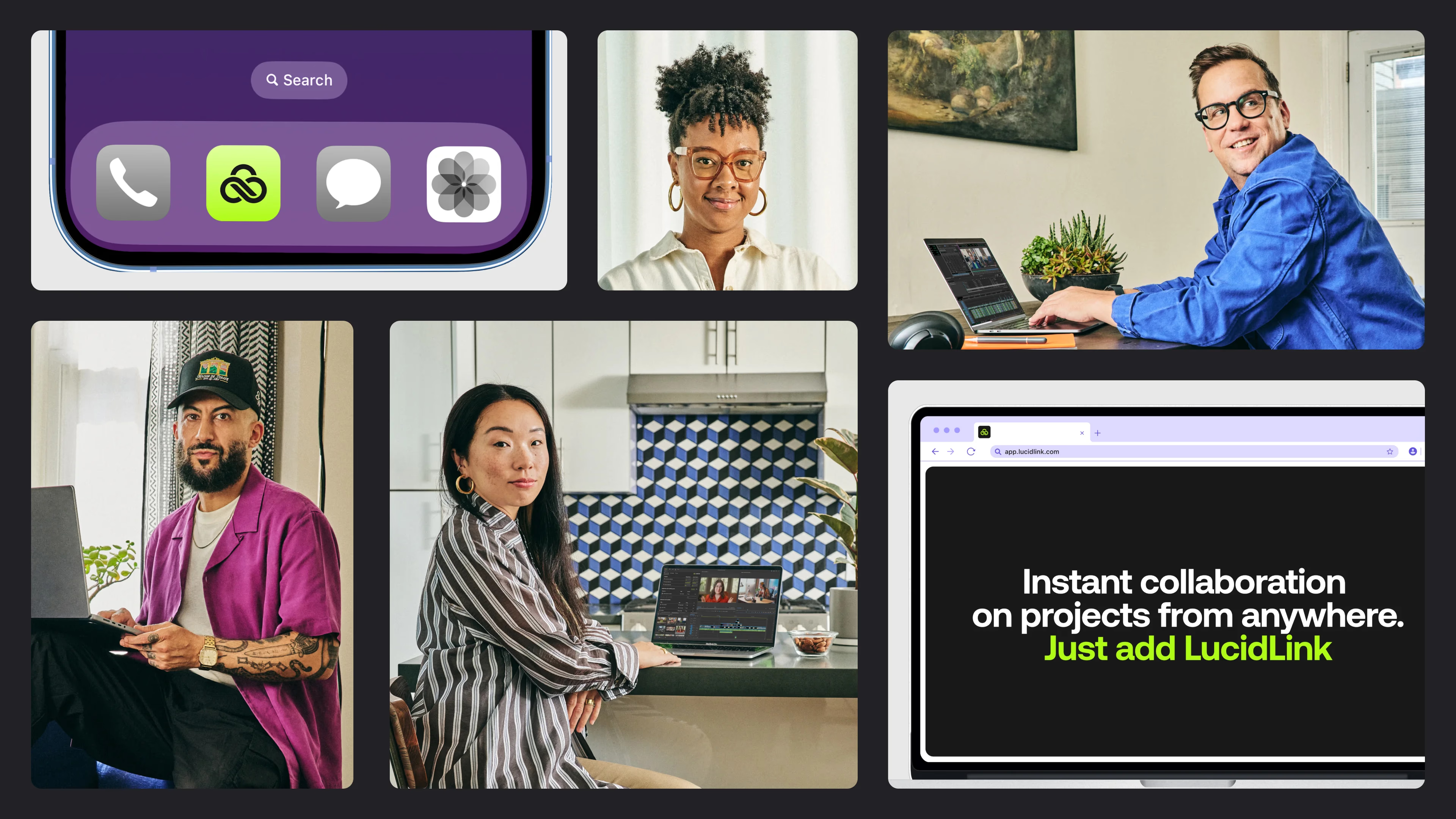
That brings us to what is new. So what is really new? If you gave me thirty seconds to talk about what is new about LucidLink, We're taking the existing workflow as you know it, through our existing desktop client, and we're really expanding horizontally the availability of the workflow to these other touch points that are available in any creative workflow. And in particular, we're expanding LucidLink into the browser and to a mobile app. So what you can see here is LucidLink in a browser, a mobile phone, a brand new desktop client, plus our LucidLink panel integrations for Adobe Premiere Pro and Adobe After Effects. So at a very high level, what you're looking at here is the new LucidLink.
More specifically, what did release what did we release on November seventh? And towards the end of this presentation, we're gonna talk about what's coming over the next several months. First and foremost, we have a brand new browser for fast and simple administration.
All the user management, billing, account administration, that's all now in a brand new user interface, which Steven is gonna show. A new desktop client. No more need to reboot a Mac system when you install the software. Install and go. Don't need to reboot, and you don't need to change important security settings. Install and go at last for anyone on macOS.
A new global user model. This is an entirely new architecture, built over the last two years, which allows you to onboard anyone anywhere lightning fast. Again, we wanna provide our customers with the ability to scale up, scale down at the drop of the hat as their workflow needs and their creative needs evolve. And we're very excited to introduce a brand new storage partner, high performance storage for all subscription plans. You may notice I neglected to put the name of the storage partner in my slide. Amazon AWS is our new storage partner, and we're very excited about the fact that for all the subscription plans that are available, with AWS, you get the same performance, whether it's our new starter plan, our new business plan, or enterprise.
I think at this point, we're ready to dig into the demo. So I'm gonna let Steven steal the screen, and he's gonna get started with a demonstration involving Premiere Pro and how we get started with the brand new LucidLink.
Alright. Thanks, Matt. So I'm gonna show you my screen here, and you can see right away I'm starting out with our new web portal, for the new LucidLink.
If you're familiar with the LucidLink classic environment, you know, you you probably remember that you could go in there, and you could basically set up a new file space. You can, like, look at your billing. That was about it. In this new environment, there's a lot more that you can control purely in the web. In fact, if you if you've been the one in the in the role of creating filespaces before, you could now actually do the entire process, including initialization and and everything all within the web portal. So that's already a huge benefit there.
But you'll notice too here we've got this new, you know, completely new UI. On the left side of the screen, this is where my different workspaces are listed, and I'm only a member of one right now because this is just the one that I'm I'm logged into. I own this workspace called LucidLink videos, and you'll see here I also have multiple file spaces within that environment.
If I click here on the three dots, I can actually do some, management, though. This is new this is new to three the new LucidLink or LucidLink three point o. We sometimes call it eight bytes, you know, release code. So if I go in here, I can actually look at things like member management or groups or permissions.
And let's actually walk through the flow. I'm gonna go ahead and invite Matt, and we'll do this in real time. I'll invite him into this workspace. So I will just enter his email here.
And, this is an optional step, but I'll go ahead and add him into a group here called cross functional team. Now I'm gonna hit click generate invite link. This is a really important note. If anyone who's go has gone through this already or you're about to try it out, When I click generate invite link, it does not send an email out.
This is due to our zero knowledge, security model. So what I need to do is actually click on copy invite link, and I can now send that link via anything. I can text message, email, whatever, you know, Teams, Zoom, Slack, you name it. I'm just gonna go ahead and and do a private message within this Zoom chat.
Let me move that over here.
You know, in reality, I could send this to to the public chat because, the invites are specific to an email address. So, I just sent this to Matt directly, and I'm gonna go ahead and stop sharing so that we can pick up on his screen and see what it looks like. So we I want you guys to see the the full flow from beginning to end.
Fantastic. Thank you, Steven. Can you see my screen?
Yes.
Wonderful. So, I have a direct message in the Zoom chat from Steven inviting me to his LucidLink workspace.
What you're looking at here is my LucidLink workspace that I created on my own. This is my account that I made for my own purposes. Up here, you can see the name of the workspace. If you've used LucidLink before, we used to call this the domain.
We have renamed this to the LucidLink workspace. And one thing that is fundamentally different in LucidLink three point o about the workspace as compared to LucidLink domains in prior versions is all of the user administration, billing, all the management is now at the at the workspace level, not at the file space level. The reason for this is it's dramatically easier to manage rather than the redundant process of creating users and dealing with billing at the file space level. For example, with our existing LucidLink Classic product, which is still wonderful and many people are still using it, every single time you make a brand new file space, you have to make a new user, for that file space.
So if I want to have a user called Steven and I have ten file spaces, I'm making a user called Steven ten times, which seems a little wasteful and a little unnecessary and a little redundant. But now in my workspace, as Steven was saying, I have create file space, workspace settings, members, groups, access and permissions, billing and invoices. These are things that I see because I am the owner of that particular workspace. But now it's time to collaborate.
So I wanna accept the invite that Steven has sent me. So I'm gonna click on that in the Zoom screen.
Alright.
So now I could see LucidLink videos. That's the name of Steven's workspace. He owns it. I do not.
I'm about to become a member, and so I already have a user. My user is my email address, matt dot schneider at lucid link dot com. That's my LucidLink user. Now I've been invited to become a member to Steven's workspace.
So I'm gonna say accept invite. And once I do that, the interface has changed. As you can see here, here is my workspace with my file space names, Bronx, Brooklyn, Manhattan, Queens, Staten Island. You can probably tell I live in New York City.
But now I'm a member of, Steven's Workspace, and he has two Filespaces here, marketing and production. Now I'm not the owner of this Workspace, so you can see that I only have the ability to leave the Workspace. I don't have the ability to manage the workspace. That's something that belongs to Steven because it's his workspace and his account.
So now that I have this, I'm gonna open up my new desktop client.
The desktop client, is entirely brand new as is this web interface. And as you can see, the user experience is identical. And I can now see Steven's workspace.
So, Steven, which, file space did you want me to mount?
Go ahead and mount production.
Alright. We're gonna mount production. So we're gonna say connect. Before I do that, let me open up a finder. Notice here whoops. Let me restart my mouse tool. Notice here that I have, three file spaces connected representing LucidLink Classic, and I have one file file space connected representing the new LucidLink.
This, by the way, is fully supported. So you can run the new LucidLink and LucidLink Classic at the same time on the same system completely supported.
This is not nothing experimental about that. You can do that a hundred percent support it. I'm running the desktop client for both. Alright. So if I mount, production, I'm gonna choose connect.
And as soon as that is connected, I'll move this aside, you should be able to see the production workspace here. So now I have Brooklyn, which is a file space in my workspace, and production, which is a file space in Steven's workspace.
Alright. So now I see I have a folder called collaboration, but it is conspicuously empty. That just means that Steven has not yet provisioned access to the stuff that I need in order to do the creative work that Steven would like me to do. Let's pretend that Steven is the is the owner of this project, and he has hired me as freelance talent to work on something creative. Okay. Steven, what's next?
I'll go ahead and, share my screen again.
I'll steal Please.
From you. And so this is where we left off on on my screen. I had just hit copy invite link, and then I sent it over, you know, to hit to Matt to to join.
In this case, I can I could click on go to members management, or I can just close this window out if I want to? And just like Matt showed you, he jumped back and forth between the web portal and the new desktop client. I'm gonna do the same thing. So I'm gonna jump over here to another screen where I've got the new, you know, desktop client as well. You notice just like on his screen, the UI is is identical. So I can come in here, and I'm gonna go into the, access and permissions section.
And I'm gonna go to you know, I could I could go in and manage individual permissions this way, or I'm actually gonna do something even easier. And I'm gonna go to a group that I created called the really cool group here, and I'm gonna go ahead and add a member to that group. Then Matt Matt is the member that I'm adding. As soon as I do that, what we should now see if we jump back let's go ahead and have you share your screen again, Matt.
You should see, some new permissions just show up. You know? And, again, this is for those of you who have used LucidLink classic. This part, the way that you can provision permissions dynamically, this part is the same.
It's just a completely new UI. So we wanted to make sure you could see kind of the correlation between the two.
So Wonderful.
So now when I look at this, Steven, can you see my screen?
Yes. I can.
Okay. And, also, do keep an eye on the q and a panel. We're starting to get questions in there. Now I have three folders that Steven has provisioned.
Again, he didn't have to transfer the content. I didn't have to upload anything. The data was already there. All he had to do was provision access, which happens, immediately.
So in here, Steven, I see media. I see folders.
What do I do next?
So go into that zero two premier projects, and then you're gonna see a really cool production. And then, you know, go ahead and open up scene two.
Scene two. Alright. Let's launch Premiere.
So you'll notice anyone following along that we are, you know, demonstrating the the Adobe Premiere productions environment where we can have multiple editors in the same project. So, okay, so now that he's got that open, I'm gonna steal the screen back one more time.
We're gonna just keep, like, jump jumping back and forth.
Go right ahead.
Yeah. And so you guys should be able to see my screen now. Is that yeah.
Looks like it's Yes.
I can see your screen.
Perfect. And so I'm gonna go ahead, and open up c one.
Premier launch in my system.
And once it finishes opening up, you're gonna notice a couple things going on right here, which is really quite cool. Just as a reminder, Matt's in New York. I'm in Arizona. So we're thousands of miles away from each other.
But yet I can see that we're, you know, we're here in the same production. He's got scene two open, so I've got a little red padlock on that. I've got scene one open. You know, I can come in here and actually, you know, do some edits.
I can make changes in my timeline. I'm gonna hit save. And those as soon as I hit save, any changes that I've made are gonna be, you know, committed back into the file space. And so then anyone else can see those.
So, for instance, you know, Matt, go ahead and you can just make a change on yours, save, and then go ahead and, you know, quit the production sorry, the project that you're in, and we'll look at we'll keep looking at my screen. We'll watch what happens here with this lock. So he's currently got it open.
So I should, artistically speaking, I should, do something in scene two here?
Yeah. Do something, make a change, and then just go ahead and close that production.
Sorry. Alright. Project.
I keep saying that wrong thing. Wrong term.
I'm going to, as you all know, I'm a very talented editor, and I'm gonna do some quick editing and hit save. And then I should close the project and done.
So we should see scene two get unlocked here in just a second. There we go. And now I can go ahead if I wanted to. Again, thousands of miles away.
Open that up right now, and I can immediately see his edit. This looks great. Maybe I'll tweak one thing. Hit save again, and maybe I'll steal this clip and throw that into this other timeline that I've got going here.
Great. That makes perfect sense in this scene that's based in Europe about this outer space scene now. Wonderful. Alright.
I'm gonna go ahead and save, and then I'm gonna quit. And that's we were gonna go super deep into Premiere Pro. We really wanted to focus more on the LucidLink UI, but we we just wanted to show you, you know, that this part of the experience is exactly the same. So all of the stuff that you loved about LucidLink before, the immediate access to your data, high performance and security, all of that back application compatibility, is gonna be the same.
And so while we while we're showing Premiere, you know, any tool that you bring is gonna work the same way. It's just, you know, at the end of the day, we're a file system that you can access from anywhere, collaborate with your team, and get work done faster without having to wait for everything to download and upload.
So let's go ahead and Matt, you share your screen one more time, but we're going to show you kind of the end of the process. So you saw me grant access to Matt. You saw that he had content appear you know, folders appearing on his screen in real time. He was then able to open. So, yeah, go ahead and quit out of your Premiere first. And Okay.
And I'll quit Premiere Pro. Yeah. Alright. You could you can see my screen. Right, Steven?
Yes. Exactly. So, yeah, stay right there. So you got finder open. And now I'm gonna go ahead and let's say we finished our great project that combines Europe and outer space for some reason.
And I'm gonna go ahead and remove Matt from the group that gave him those permissions. And within a couple seconds here, we should see that he loses permission to both the zero zero media folder and the zero six phoenix folder, and that should leave only the collaboration folder that he started with, which I could revoke that access as well, but I don't need to. He needs to keep working in that folder, let's say. So that's how simple it is to onboard new people.
You notice, you know, again, we didn't have to, have him you know, I didn't have to go in and, like, create a new user within the file space. He already had a LucidLink account. And, again, the LucidLink account is free for everybody. Anyone can go on and create an account.
And then when you just get invited to a workspace, you simply click on that invite to accept it, and you're in. So it's a it's a really smooth and easy experience, especially if you are a freelancer who works with a lot of different companies. It's gonna make that whole process a lot smoother.
Now if you wanted to revoke access for me, like so you removed access, but I still can see the same file space. But let's say for security reasons, you don't want me to see this file space whatsoever.
How how exactly would that work? Let me stop my share. Is that something that you can show, Steven?
Yeah. Absolutely. Yeah. Great great call out. So let's come back to my screen here. So I'm I'm now looking at the, you know, members management pane within my workspace, and I can see here's this particular member that joined on November twenty first. And I just click the three dot menu, and I say remove member.
And so now I'll go ahead and stop sharing. We'll go back to Matt's screen.
It's kinda fun to watch, actually. Let me, it happened so quickly. I was hoping to show it happening live. But as you can see, both in the, let's refresh this.
In the desktop client, I no longer see the workspace that belongs to Steven. I only see my workspace, Lucid NYC. And in the browser, I only see Lucid NYC. I no longer see the workspace that belongs to Steven because he revoked access entirely.
So there's more than one way that you can manage your teams as your team's accordion larger or smaller. You can revoke access to a particular folder, but they the creative the let's say, the freelance creative can maintain access to the file space. That's the volume, the hard drive that mounts on the desktop. Maybe because I need access to common elements or archival content or some other project, some other episode of the same season.
Or as Steven just demonstrated, he revoked access to the file space completely. Now I don't see anything other than my own my own material, my own workspace, and my own file space, my own file spaces. I don't see anything that now belongs to Steven. Naturally, if Steven wants to onboard me again, let's say the project goes on hiatus and now we're getting the band back together to do more creative work on that same project, he can simply reinvite me once again and give me access to both the file space and a particular directory within the file space so I can resume work on the old materials working on or start work on something new.
So that's that's how easy it is to onboard talent, as teams accordion and evolve, based on the creative needs.
Yeah. I'll add one more thing that's kind of new with this, fact that the members belong to the workspace, and that's the way that you manage groups.
In this case, groups can span across multiple file spaces. So, for anybody who needs to have, you know, like volumes that mount at the root level for workflows like Media Composer or plenty of other applications, you can provision a group within your workspace, and the group can give permission to any number of filespaces. Let's say there's three different file spaces that you want. One for your media, one for your projects, one for graphics, or something like that. I can create a group that grants permission that spans those different file spaces. And then as soon as I add a member to the group, they immediately, in one action on my end, get access to all of those in one one fell swoop. So that's a really cool, sound kind of a side benefit or a perk of having the, members belong to the workspace instead of the file space.
We just got a very good question that I wanna answer, right now. How does the new desktop client mount file spaces without requiring MacFUSE? Excellent question. We built our own internal, our own native implementation.
So MacFUSE, for those of you who don't know, MacFUSE is a is a technology component, that we use, in our LucidLink Classic product. That's what we've used in the past for LucidLink Classic. That's really the bridge between the world of the cloud and the world of your local desktop. That's how data stored in our cloud presents itself like a conventional hard drive in LucidLink Classic. The catch, though, is Apple deprecated Kext extension. So MacFUSE is a Kext extension. And because they deprecated it, therefore, you need to reboot and change your security settings when you install it.
That's why we had to move forward and build our own native implementation to connect the universe of the cloud within the universe of your local desktop. So we built it, in house, which also means that we have complete control over every time an operating system changes. It's very easy for us to update, and we can also maximize the performance. A big part of why we built our own implementation is performance.
If you don't have performance, everything else is pretty much academic. When you hit play on your video editing tool, you expect real time performance. Everything that we espouse, no need to download, no need to transfer, a lot of that is predicated on performance. And that's why that's one of the big reasons that we built our own native implementation.
So it's very exciting that we have this control over changes in operating system, change in changes in extensions, and, ultimately, the ability to fine tune performance, perhaps application by app application, something that we've thought about for the future of LucidLink.
Steven, did I miss anything in that respect?
No. Sounding great to me.
Terrific. I think we could probably switch over to what comes next after LucidLink, three point o. Alright. So let me return to my slides, and there will be more time for questions, in a couple of minutes.
Alright. So, Steven, you can still see my screen?
Yes.
So three point o, which we launched on November seventh, really is just the foundational beginning of something very exciting and very new for LucidLink. Over the next several months, we're gonna be issuing updates in a much speedier rolling cadence far faster than what we've done in the past. If you're new to Lucid Lake, a little bit of history. Historically, we always released, new, updates to our LucidLink Classic, as major tentpole releases once or twice a year.
We now think it's much better to, release updates as soon as they're ready as soon as they're ready for prime time in a speedier cadence. So between now and probably through the springtime of next year, there's gonna be a lot of updates that we're gonna roll out, in a, in a much faster way. For example, web browsing. So what we've shown here is the new web application, which represents LucidLink, but we don't yet have in three point o the ability to browse your actual content directly in the browser.
That will be coming probably in the springtime. We hope certainly by NAB in April. The ability to browse your content, not just on a desktop level, which is what you can do now today with both LucidLink Classic and the new LucidLink, but the ability to browse your content right, in our new web application.
Along the same lines, web upload, drag, drop, done. I sent Steven a link. He clicks on the link in the browser, and that gives him the ability to upload content on a desktop level right into the browser. No need to install a desktop client.
The classic use case is the DIT in the field, camera operator, somebody who's offloading new camera content from a card. You just need to contribute that new data to the file space because you have hungry editors waiting, to sink their teeth into it somewhere else. That would be via web upload. External link sharing, probably one of the biggest feature requests we've had over the past several years.
We have link sharing today, but it still requires installing the desktop client.
External link sharing means we you'll be able to share links to content, and you'll be and the recipient will be able to click on the link and see the content in the browser. No need to install the desktop client. The use case there is, Steven is a producer. I'm the editor, and I wanna I export a version of the cut, and I put it inside my LucidLink file space, and I wanna share that content with Steven.
He's not allowed to install the desktop client for security reasons, for example. I can send him an external link. He'll be able to click on it and have access to that content immediately without needing to install any software. So that's external link sharing.
By the way, we should note, Steven, that, the internal link sharing, the link sharing that we've had for quite some time, is improved with three point o. Now we are able to provide valid URLs in the HTTP protocol rather than the previous linking mechanism that we used in the past, which is a nice improvement for the existing, for the three point o that we shipped on November seventh. Multi factor authentication, a lot of people have asked for this. Some of our clients, use single sign on applications, which also include MFA.
This will be ideal for those who either don't wanna pay for multifactor authentication to a single sign on single sign on identity provider or they don't use SSO at all. This will give them the ability to introduce MFA into their security workflow without requiring an external single sign on provider. And then finally, a brand new single sign on implementation, which will be based on SAML technology will which will really bust open the doors to using pretty much any single sign on IDP you want to use beyond the two that we currently support, which is Okta and Azure AD.
And, of course, perhaps most exciting, support for mobile apps. There'll be an app for Android and an app for iOS.
We're actually launching a public beta, I'm happy to announce, for the for both apps in the mid December time frame. So if you wanna try the new LucidLink and try the new mobile app, please participate in our public beta of these two mobile apps, probably mid December. So stay tuned on more information about that when we're ready to go live with the public beta of the new iOS apps.
Now I think we can probably turn to any questions.
Let me open up the q and a panel. I think I saw a few good ones there.
Will there be oh, this is a good one. We get this all the time, Steven. Will will there be the ability to turn off web browsing or limit it to certain folder trees? Man, that is probably one of the questions we hear most frequently about these new tools.
So classic LucidLink is the desktop client. New LucidLink is the new desktop client, and we're introducing browser and mobile apps. And when we talk to our customers about this, we very often get this question. This is amazing, and I love it, but we don't necessarily want that capability available to all users.
Can I turn that off? The answer is we will provide that in twenty twenty five. I don't have a clear time frame when, but it's probably the thing that we hear about the most. The ability to disable access by tool, meaning, Steven is a freelance editor.
I want Steven to have access to content via the desktop client, but he's not allowed to see particular content through the mobile app or through the browser. So I think the answer is yes. We will be able to provide that. I just don't have a clear sense as to when we're gonna do that.
Let's see.
Will there be an option to disable access via mobile app for our organization? Yes. That's it says, excellent question. Same question. Same answer.
Will the multifactor system support TOTP and or passkey? Excellent question. I don't have an answer right now because the implementation is still in progress. So stay tuned on more information on the technical details of how we're gonna implement that new feature.
Were there any questions in the chat? Sometimes people put questions in the chat.
Will the beta be shared over newsletter?
Yes. We will definitely put out a notice to, via our our LucidLink newsletter when the public beta I assume you're talking about the public beta for the mobile apps. Yes. We're gonna we'll be ready to tell the world about this. We're telling the world about it now. But we'll be ready to announce the availability of the public beta probably in the newsletter, as well as other, channels of communication.
Will these features show up automatically if you already have a subscription or you need to create a new subscription?
No. Features are not predicated on the subscription.
So as we roll out new capabilities, new features, whatever it is, if the plan that you subscribe to encompasses that feature, you'll get it automatically. We do differentiate between so we have a new pricing model with LucidLink, the new LucidLink. There is a starter plan, a business plan, and an enterprise plan.
We do differentiate the feature set, for starter and business and enterprise. So if the plan that you already subscribe to is entitled to that feature, you should just get it.
Can I add a little caveat to that just in case Please?
It's happening?
There is a difference between LucidLink Classic and the new LucidLink. So if if what you meant by your question, Kent, was, you know, if you're currently using LucidLink Classic, you won't nothing will automatically push you to LucidLink the new LucidLink three point o. So you're able to just continue using LucidLink Classic. And that feature set, very mature platform, you can keep using that as long as you want. And so it would take you intentionally setting up a new account and a new, you know, subscription on lucid the new LucidLink to start getting these new features that we're demonstrating here. So I just wanted to clarify that in case you're wondering.
Thank you for that. It is an excellent question. Thank you, Kent. Here's a good one. This is probably one of my favorite things to talk about. Will there be a possibility to link to other platforms like MASV or Frame. Io or MediaSilo or other creative collaboration tools?
That's a very good question.
Probably one of the requests that we get the most often is the ability to have a public SDK or an s three API gateway so that loosely can be integrated into other technology stacks. The The good news is that the public SDK is officially on the road map. We hope that the public SDK will be available in q one of twenty twenty five. And the s three API gateway, we expect to follow shortly thereafter, perhaps by mid twenty twenty five.
Don't know that exactly in terms of time frame, but there will be a public SDK. It's being worked on at present. There will be an s three API gateway, which is how LucidLink will be able to be incorporated into somebody other somebody somebody else's technology stack and asset management tool, review and approval, cloud based transcoding, whatever the application is. We will have the ability to read from and write to LucidLink via somebody someone else's front end via the SDK SDK and the API gateway.
I'm we're all really excited about that. That's one of the things I as an old post production dog myself, that is something I'm very much looking forward to.
Let's see. What else?
Steven, any other questions that I missed there?
Great question there from Matt. You know, that like like we said, that that feature is still being developed. I don't have any more specific details on on, you know, exactly the options that are gonna be available, Matt, to you.
I don't. Yeah. That's a very good question. I don't have info on the technical implementation for MFA.
You know, there's a few subtleties there in terms of how what the user experience is both for the administrator and for the for the standard user. I don't think we have those technical details quite yet.
Oh, that's a great question there. Any any workflows that are still experiencing better performance? So, we've done a lot of performance testing with with the new LucidLink as you might imagine. I did a lot myself.
I there was nothing that I found that was better on the previous on the LucidLink class. Like, there in in most cases, I would say it's pretty much identical. There were a handful of cases, particularly live ingest, that I found to be, significantly improved with the new LucidLink. So, I would tend to think of it as mostly the same per on a from a performance standpoint, in, you know, possibly better in a few areas.
That was at least my experience.
Very good. Here's a question that, is pretty important. Jake has asked, what does it mean to migrate from LucidLink Classic to the new LucidLink?
There's a there's gonna be a few ways to do this.
First and foremost, we will be providing an upgrade tool in the late winter, early spring.
What that means is that that will that will represent an in place upgrade for your existing LucidLink classic file space. And by in place, I mean, you don't need to copy your data. You have an existing LucidLink two dot eight LucidLink Classic two dot eight Filespace.
You apply the upgrade tool. We don't have details yet on what that experience will look like. Is it gonna be a heavy app? Is it gonna be in the browser or both?
We're not quite sure yet. But it will promote you into whatever the most current version of three point o, so LucidLink three dot x, and you will not need to copy your data or make a new LucidLink file space. It will also migrate some of your user information as well. The exact technical implementation details are also not yet visible to Steven and myself.
But the important thing is that you won't have to copy your data. The data will stay in place. So if you're currently using one of our bundle plans for LucidLink Classic, so for example, whether it's LucidLink Classic Basic, which is on Wasabi, or LucidLink Classic Advanced, which is on IBM, the data will simply remain on IBM or Wasabi for those plans. And you'll be running LucidLink version three.
The other path that you can take is every new LucidLink file space that you create as of November seventh, every brand new file space you make will be based off of AWS. So you can leave your data where it is on IBM or Wasabi or if you're using a custom plan on some some other s three storage. Or if you want, you can migrate your data to AWS.
So that's entirely up to you.
We think that most of our customers, certainly at first, are gonna go for the the friction free option, which is an in place upgrade using our upgrade tool. So everyone's very eagerly awaiting the LucidLink upgrade tool. Again, expect that late winter, early spring. I hope that answers the question.
I can take the next one if you want. So, what is the need to move from classic to the new version?
The short answer is you don't need to. You know? That's the beauty. We're we're keeping the LucidLink Classic platform alive for as long as people want to keep using it. It's a great platform. It's been, you know, working reliably reliably for years.
But what we're really thinking is that, you know, we're gonna keep adding the the a lot of the work that's been done before the launch of LucidLink three point o was to enable this whole roadmap of great features that are coming down the pipe. So what we expect is that there you know, for different customers, you get to decide when the point is right for you. But as more and more features come to the new platform, it's just gonna look it's gonna look more and more enticing. So at some point in the future, when it makes sense to you, you can make the jump when you want to, but we're definitely not forcing anyone to do it.
A hundred percent. There's no rush. You can stay on this link classic as long as you want to. Support for that platform is not going anywhere anytime soon. You you can continue to run LucidLink Classic, in perpetuity as long as you want. We would encourage you when the upgrade tool is available to update, but that's entirely up to you.
Let's see. I think I saw one in the chat. Oh, yeah. I did answer this in the q and a, but Martin was asking, could we decide who can create external link sharing? The answer is yes.
The administrator will have obviously, the admin will have control over who gets external links and who does not.
Let's see. As new clients, would we be starting out using three point o?
Actually, you have the power of choice here as well. We would encourage you to start using LucidLink three point o, but you still can create a brand new LucidLink classic file space if you want to. So on our website, when you go to register, the registration page is, the default registration is for LucidLink three point o. At the bottom of the registration page, there's a link that says, are you looking for LucidLink Classic?
You can click that, and that will take you to our legacy LucidLink Classic, web portal. Same web portal that existing customers brilliant. Thank you, Steven. Read my mind.
That will take you to the legacy web portal that our customers have been looking at for years, and that's where you can manage or create new file spaces if you'd like. Oh, we would be remiss if we did not mention, perhaps one of the most exciting things about the balance between old and new is if you make a new LucidLink classic file space now today, you can make it on AWS. We actually introduced support for AWS with the legacy LucidLink Classic platform several weeks ago, actually, just before the launch of three point o. That would be the ideal scenario if you're just getting started out.
If you're just getting started out, you've never used LucidLink before, three point o is brand new. It's very exciting. It's a foundational release. It's a it's a next generation platform on which we will build the future.
But it's also missing a few things, such as three point o does not yet have single sign on. Single sign on will be coming probably towards the end of the year based on a new IDP technology known as SAML.
It's missing some of the desktop client settings, for example. So there's a few things that we haven't yet brought into the new three point o. So if you're starting out and you need things like single sign on, for example, as many do, start with LucidLink Classic on AWS.
And when three and the upgrade tool becomes available, then you're getting not only an in place upgrade for the new LucidLink, but your data is already on AWS, which is high performance storage for all plans, and you don't have to migrate a thing. You could stay put on AWS.
So if you're starting today and you're making a classic files based today, we would politely encourage that you start with an AWS based LucidLink classic files based because then your you are few truly future proofing your experience with LucidLink as we move forward with new features going into early twenty twenty five. Excellent question. I'm glad that was asked.
Yeah. And, I'll take the KP question there. Any bundled features in three point o that will facilitate syncing and on prem backup to provide redundancy, in case of an outage or, at AWS or LucidLink?
Initially here, nothing different on that front. As it as it compares to LucidLink Classic, you know, you can still mount the file space anywhere as a source or destination and and push and pull from for backup and redundancy. However, the aforementioned public SDK and API s three gateway is gonna provide potentially some options there. So there would there would be, maybe ways to kinda streamline or expedite being able to push and poll or synchronize or do business continuity disaster recovery type backups, you know, to other s three buckets and things like that. So that will be coming down the road map, but right now, it's basically the same as it was before.
Fantastic.
Do we have any other questions?
I think we've answered everything in the q and a panel.
Alright.
Well, in that case, we can probably wrap a little bit early and let people get back to their day.
Oh, it's Sorry.
One more. Is there one more? Oh, fantastic.
One more.
That's awesome.
Go ahead.
Oh, that's a good question. Steven, do you wanna take that?
Yeah. Absolutely. So, the the UI for snapshot management is, if if you look in the app right now, mounting a snapshot is very similar. You go into the snapshot section, and you can mount it and browse it.
All of that part's the same. One of those features that Matt was referring to as far as some of the the control panel and the UI, Right now you can't go into the, as an as a as a workspace owner, you can't go into the Filespace. Oh, here we go. Yeah.
Settings, and you'll notice that yeah. You can click on snapshots there, and so this is the ability to essentially load the snapshots, or look at which ones you have, but you can't modify the schedule yet within the GUI. So you can still do the do the modification of the schedule. You just have to do that in the command line interface.
So that's a that's one of those coming soon features that, didn't quite make the initial launch.
We should also mention that, adjusting your cache.
Probably the feature, the the sorry, Steven. Did you just cover that? The No.
I was talking about stop management, but you're right.
That's yeah.
Yeah. For our existing customers who are accustomed to seeing a desktop access desktop client accessible setting to change the size of your cache and the location of your cache, At the moment, you can't do that in the brand new desktop client. You will be in a coming release probably towards the end of the year or the beginning of, next year, but you can still do it, in our command line interface. In fact, our knowledge base article has a very good knowledge base, that explains how to do this and a lovely video that Steven made, guiding you through how you change the location and the size of your cache directly in our command line interface. You may be wondering why did we do that? Why did we release three point o when we did if some of these foundational things are not yet in the desktop client or in the equivalent web application?
And the simple reason is feedback. We really wanted to put this in the hands of both existing customers and brand new users. Both perspectives are incredibly important to us and a different perspective. We really wanted to get feedback on the experience as soon as possible, which is why we released when we did.
So without a doubt, there's definitely things that are missing from the desktop client that you may be used to if you've been using LucidLink before, such as the settings, such as single sign on. They will be coming in a release coming up in the next couple of months or early q one. But first and foremost, we just wanted to get people's reactions to the new platform, and that's why we released it in the in the form that we did. So definitely check out that knowledge base knowledge base article on how to change the size and location of your cache.
Yeah. Good call out, Matt. There's one more question in the chat. Jason's asking, can you still bring your own s three buckets?
What we used to call custom, in the LucidLink classic environment. Yes. You can. That's gonna be part of the enterprise.
So if you if you're looking at at the three point o and you're looking at creating a file space right now, you'll see a couple of options that pop up in there. And one of them says, you know, custom. You have to click on the enterprise option. So and enterprise, it does involve, you know, talking to our our sales team and setting that up, and we're working through that process that way.
So the the first two plans, the starter and the business, are things you can fully deploy on the web. Never talk to anyone at least at the link. Not that we're mean, but, you know, you could just go ahead and go through and set the whole process up, you know, completely from start to finish on the web, and never have to have any hand holding. But, but the enterprise is where you're gonna find that custom option.
Very good.
Well, thank you everyone for joining. We're delighted you could, you're welcome, Jason.
Are there any other questions, before we wrap our magic hour session today?
Alright.
In that case, we're delighted you can join, so thank you. A recording of this session will be available on our LucidLink website. So lucid link dot com slash events.
Oh, I would be remiss if I didn't put up this slide that there is a free trial.
Where is my there we are.
If you wanna give LucidLink, the new LucidLink a try, please go to LucidLink dot com. You can sign up. The trial, by the way, is also a little different in the sense that it's now thirty days instead of fourteen days. But if you need more than thirty days, we're happy to extend that. So please do give the new LucidLink a try. It's completely free to get started. The trial is available by default for thirty days.
And if there are questions, you can reach out to either Steven or myself directly or send a, support ticket, to our incredible support team, and they can answer any questions that you have.
So, on that note, I think we could probably conclude.
Is there one more question?
You're welcome.
Thank you everyone for joining.
I think this is our last magic hour session until after the Thanksgiving holiday here in the United States, so very happy Thanksgiving to those who will be celebrating.
We are planning on having another magic hour session in early December to talk about some of the differences between LucidLink Classic and the new LucidLink. So we're gonna go a little bit more into detail at some point in, the December time frame. So please stay tuned as to when that will be, when that session will be happening. Loose link dot com slash events is, where you will see that, noted. So, Steven, any final words before we conclude?
No. Just great talking to everybody, and, yep. Remember remember, you can try both. You know, you can if you've got a current LucidLink classic, Filespace running, you can always set up account for free and do the free trial on LucidLink three just to kinda kick the tires and, see what you think. So you can run them both simultaneously on the same machine, mount file spaces on the same machine. So it's it's really pretty flexible.
Thank you, Steven. Thank you, Steven, for joining. And, please don't hesitate to send us any questions you have. Like I said, the most important thing is your feedback.
This was built for creatives everywhere for any creative workflows, and we'd love to hear what you think. So on that note, we can conclude our session. Thank you again. Happy holidays if we don't see you before then, and, tune in next time for another session of LucidLink Magic Hour.
Join us on November 21 as we unveil the all-new LucidLink — made to empower media and video teams with seamless, real-time access to large files, no matter where you're working.
Host Matt Schneider and workflow expert Steven Niedzielski will take you through a live demo, showcasing how our latest updates transform distributed workflows for creative teams. You'll get an in-depth look at our new features designed to power effortless remote collaboration on your go-to video editing tools — whether you’re an editor, post-production pro, VFX artist or project manager.
Here’s what we’ll cover:
What’s new: explore our updates designed to streamline video workflows.
Live demo: watch real-time collaborative editing and instant file access in action.
Use cases: see how creative teams can collaborate effortlessly from anywhere with LucidLink.
Q&A: get your questions answered live by our experts.
Don’t miss out — come along to see how you can transform your creative workflows with the new LucidLink.