Product & news
LucidLink tips & tricks: security, setup and smart settings
Last updated 13 January, 2026
3 mins
Our wonderful sales engineers work with teams every day, troubleshooting, optimizing and sharing ways to make the most of LucidLink.
Every Tuesday, they share their best tips in our Slack community. Now we're bringing their expert advice to everyone.
Read on for security essentials, cache optimization advice and permission management that'll save you headaches down the road.
1. Don’t get locked out: create your backup code
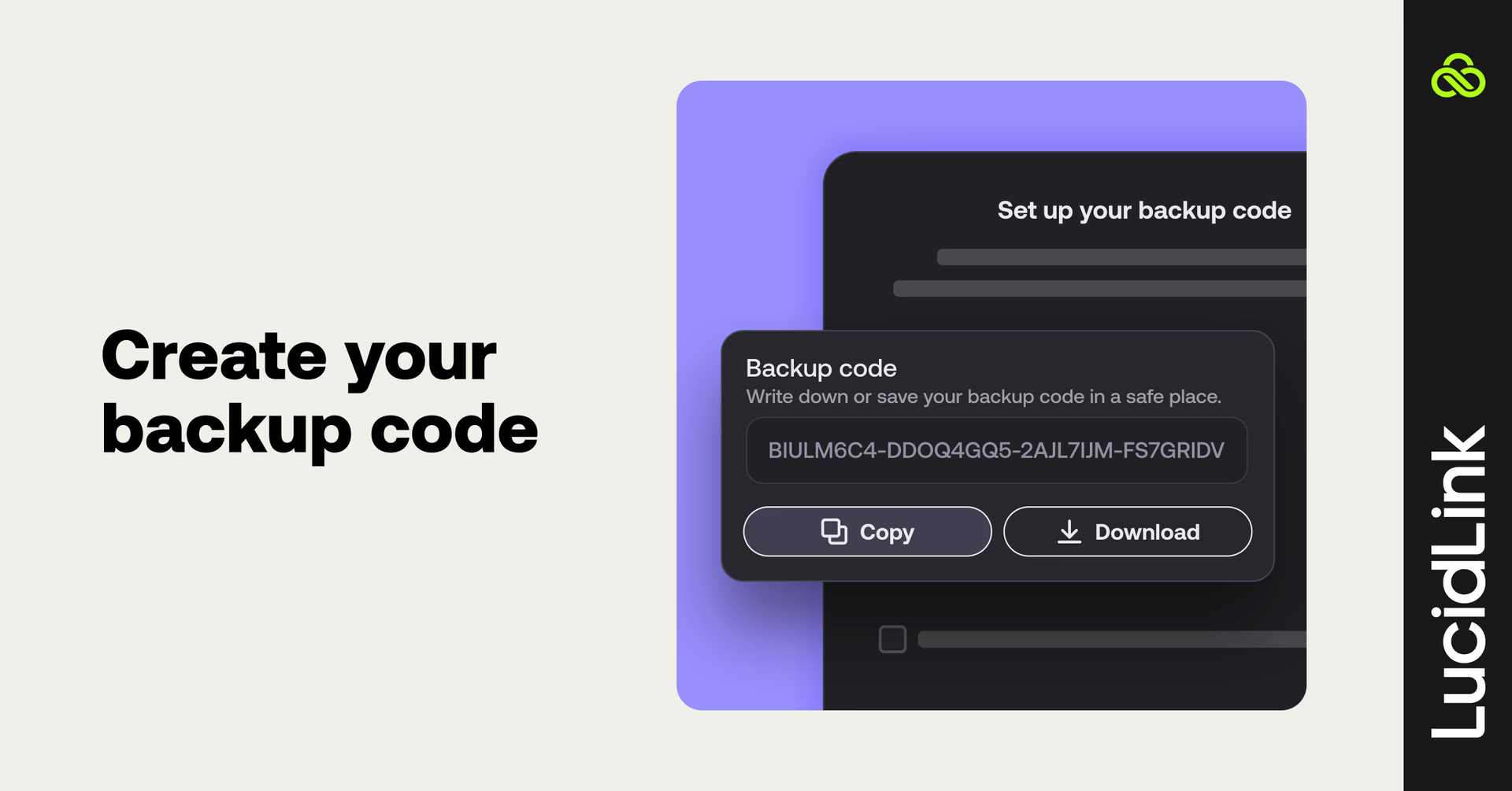
LucidLink runs on a zero-knowledge security model, which means we can’t reset your password if you lose it. But don’t panic. Generate a backup code now and keep it somewhere safe. It’s the only way to reset your password if you get locked out.
Here’s a step-by-step guide on how to generate a code and store it.
2. Get more from your cache
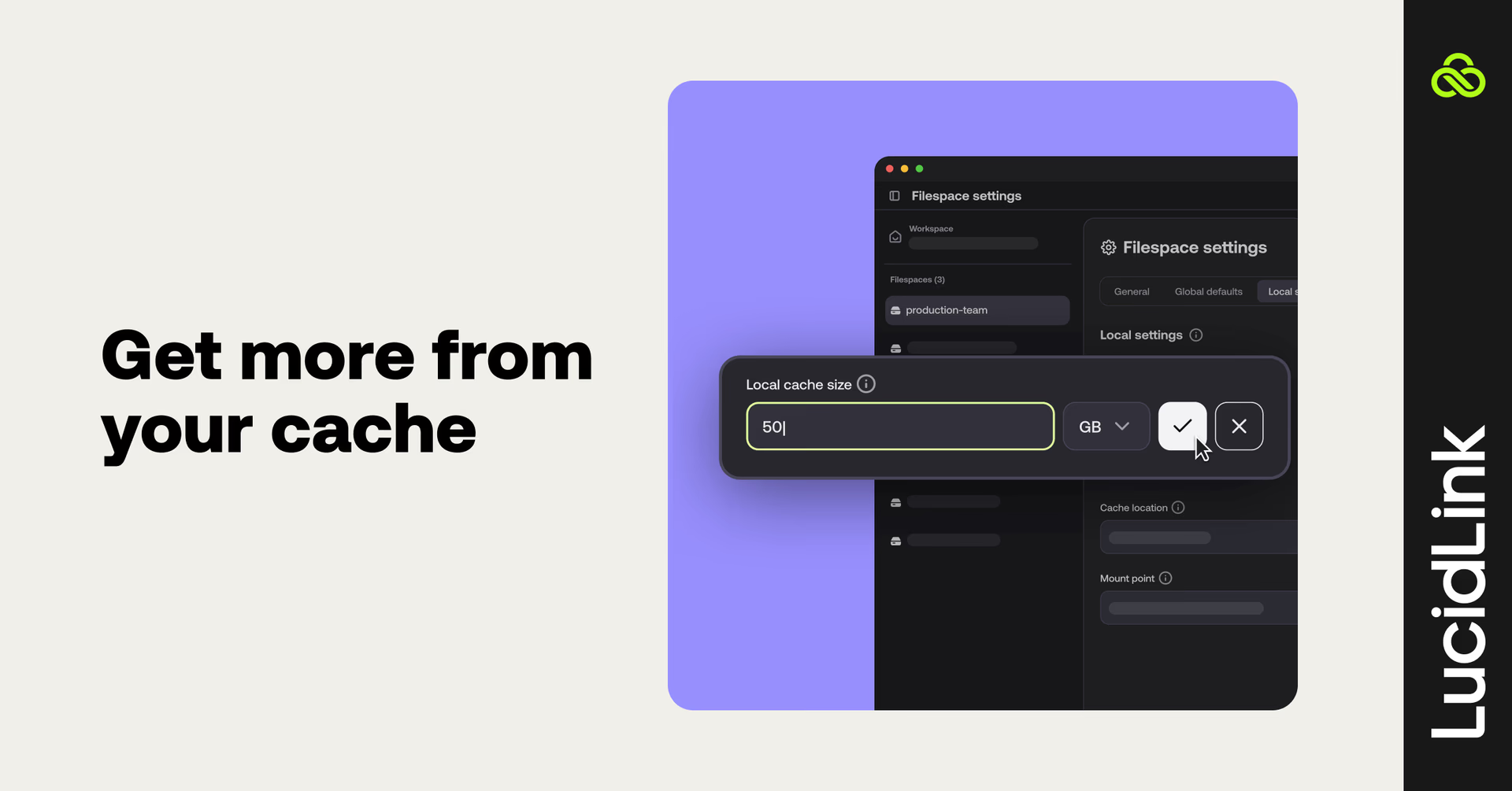
If you’re editing large datasets or high-bandwidth formats, your cache can make or break performance.
By increasing its size, you give LucidLink more room to keep things moving. You can also point it to a different disk with more capacity, handy if your primary drive is running low.
Learn more how to adjust your LucidLink filespace settings here, including cache size and location.
3. External drive cache: handle with care
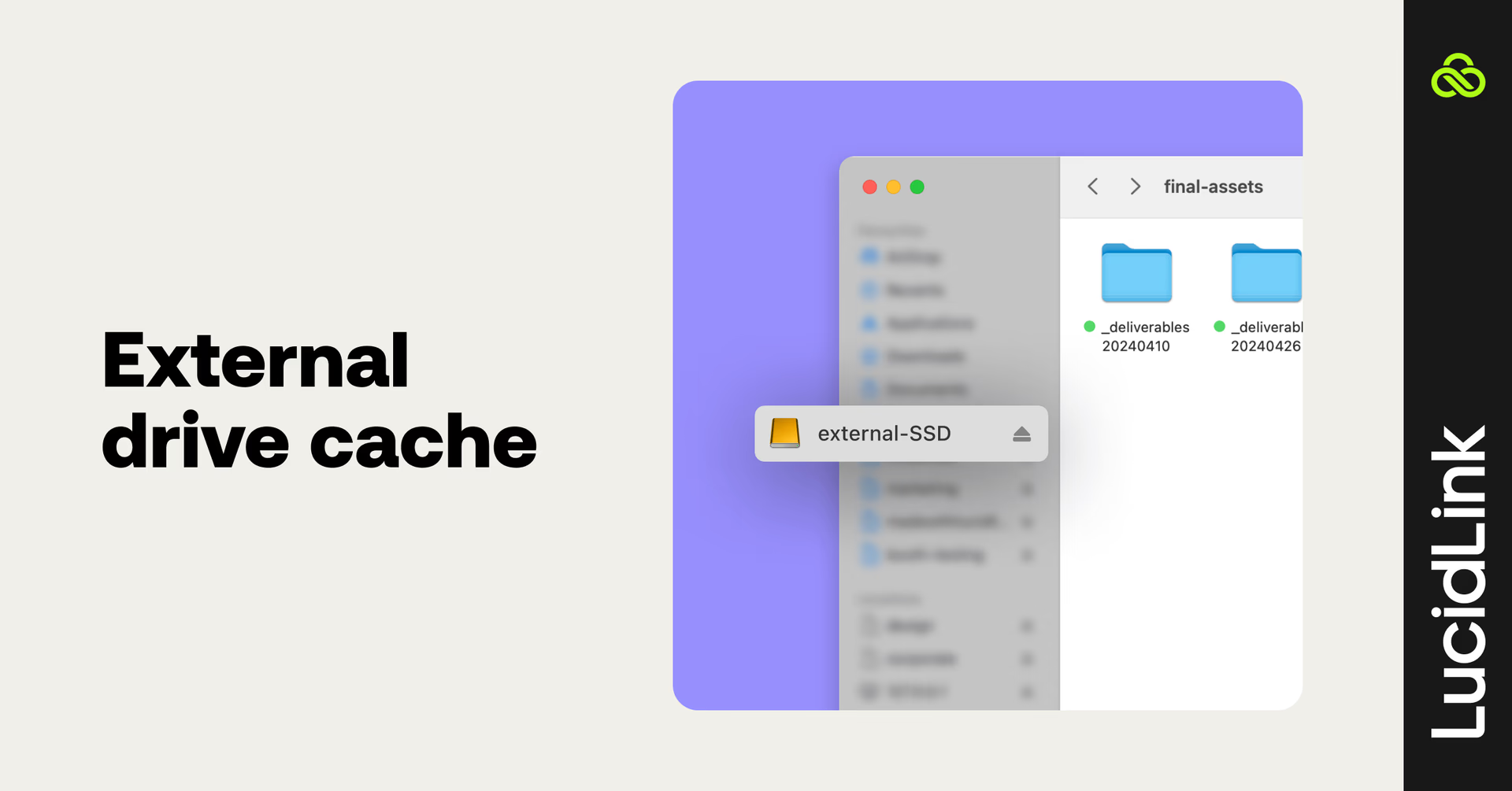
Yes, you can host your LucidLink cache on an external drive. But only if:
It’s an SSD or NVMe
It’s formatted APFS (Mac) or NTFS (Windows) — exFAT is not supported
It stays plugged in while LucidLink is running
Not meeting these requirements may lead to performance issues.
4. Unpinning decoded
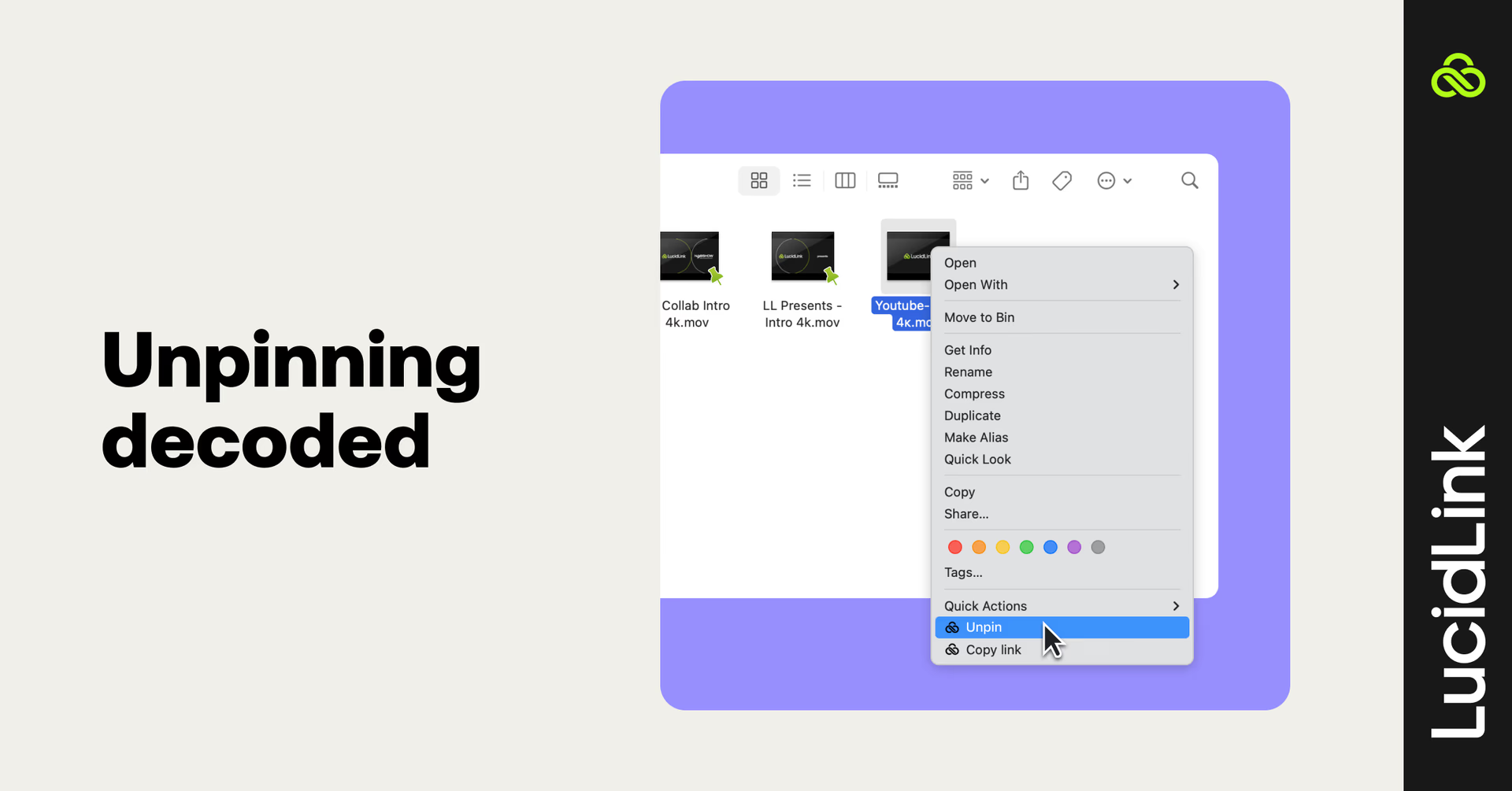
Contrary to popular belief, unpinning doesn’t delete your LucidLink cache data. It just marks it as evictable, which means LucidLink can replace it if space is needed. Meaning your data isn’t deleted, it’s just no longer locked in place.
5. Group permissions = fewer headaches
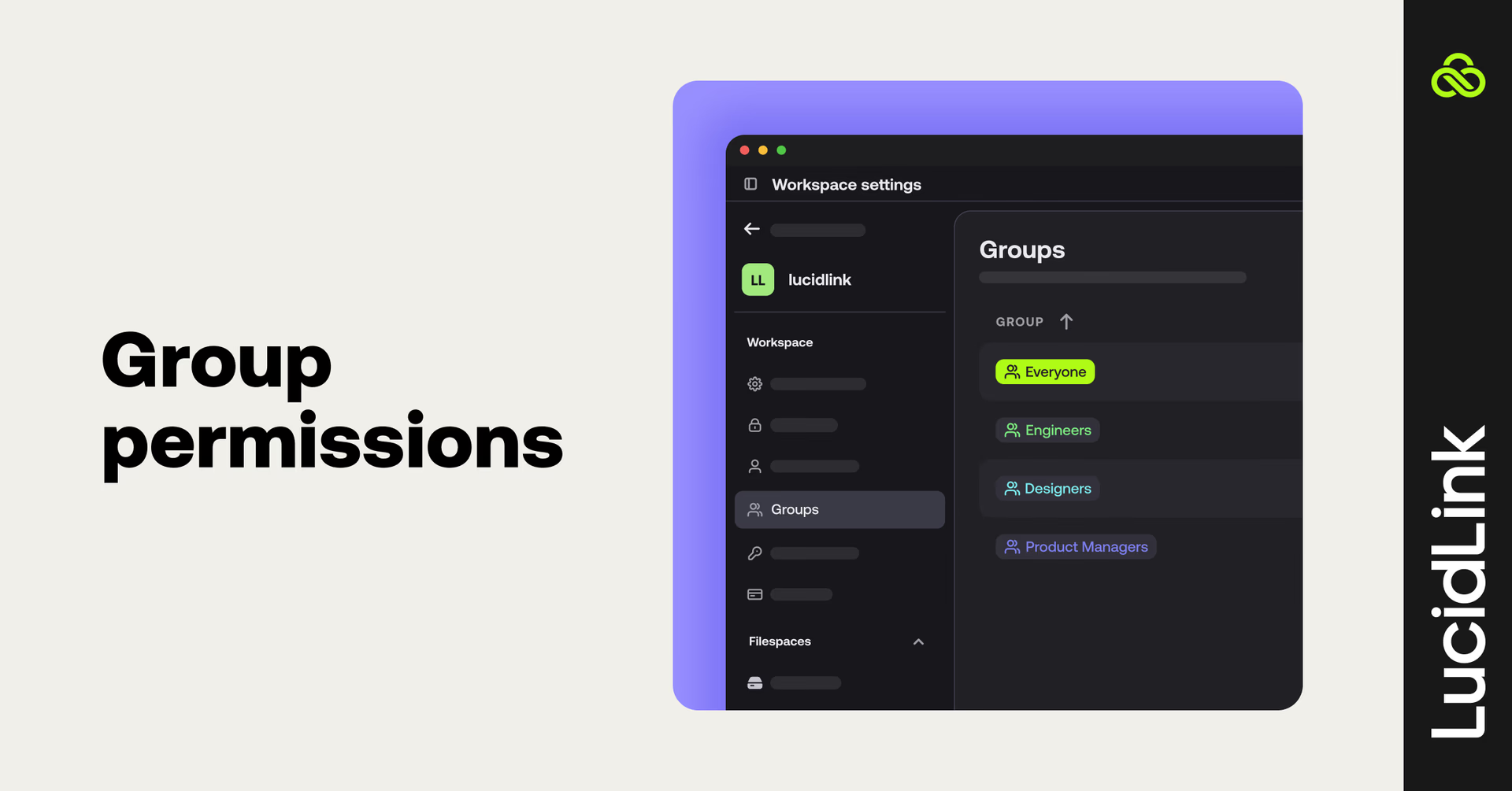
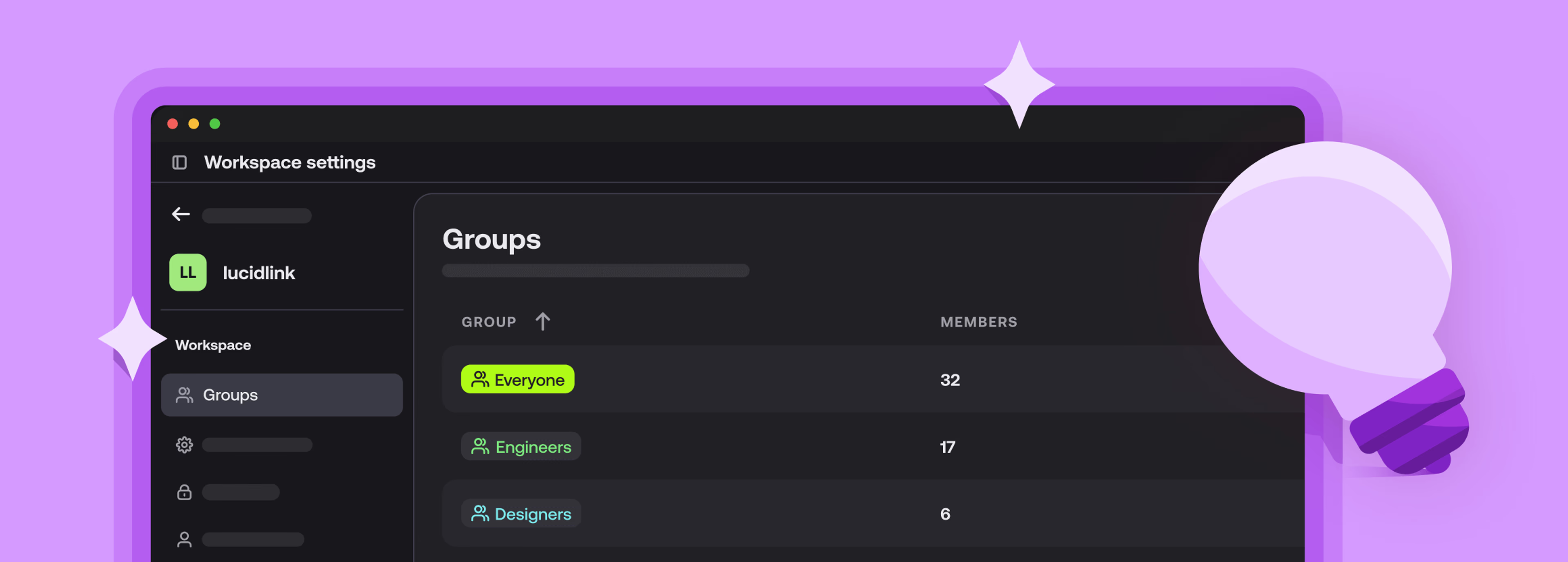
In LucidLink, you can set fine-grained permissions that control who can view or edit specific folders. We recommend managing permissions at the group level instead of the user level.
It makes long-term management much easier. Onboarding someone new? Add them to the right group. Offboarding? Remove them. Simple (and secure!).
6. Send diagnostics first, get answers faster
If you run into a technical issue, generate a diagnostic report before creating a support ticket.
The report collects all the details our team needs to start investigating right away. Once it’s ready, fill out the support form and include the 6-digit ID from your report.
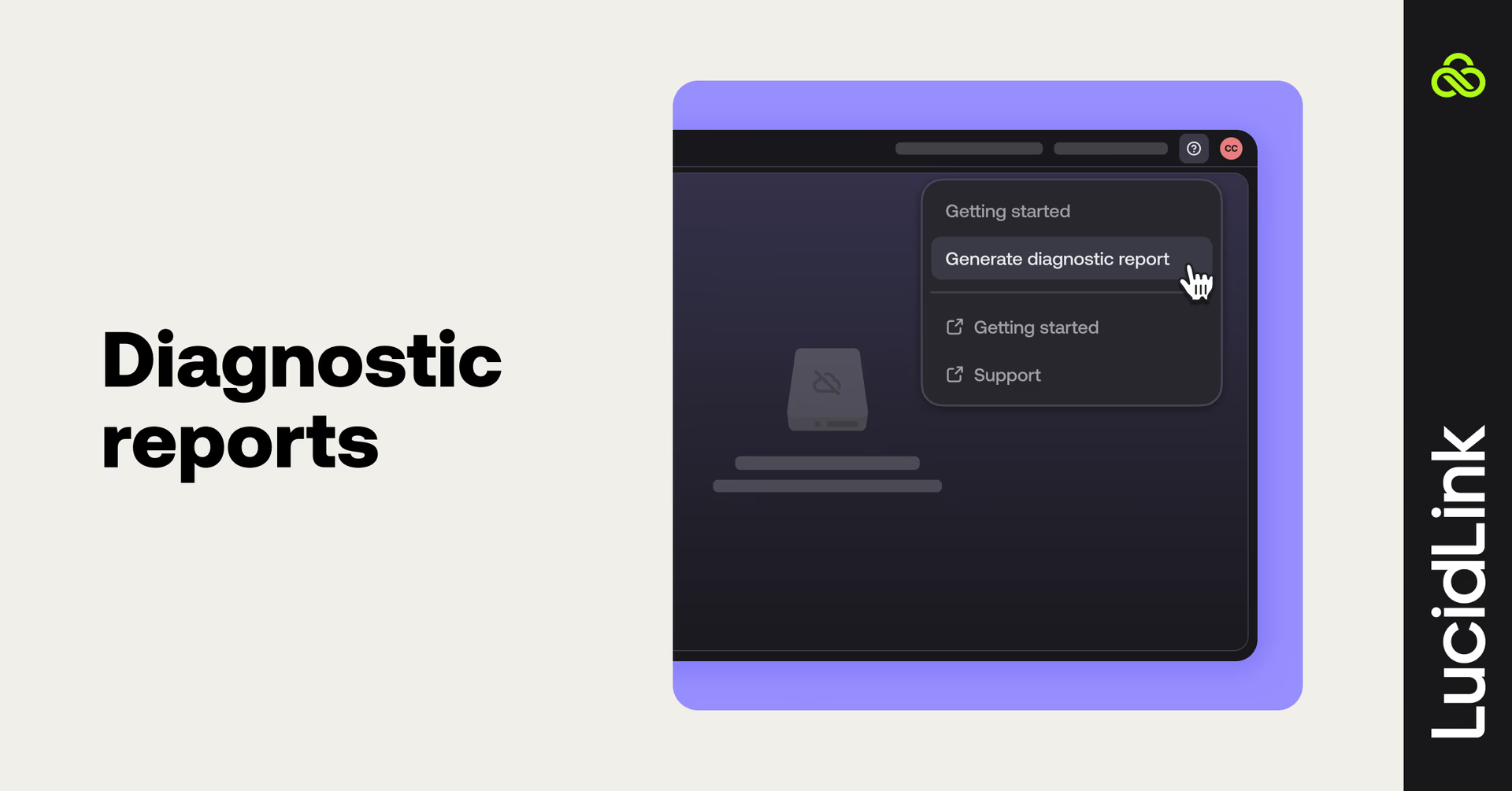
Here’s how to create a LucidLink diagnostic Report.
That’s a wrap on part one of LucidLink tips & tricks! We’ve covered the essentials to make your workflow smoother, smarter and more secure.
In part two, we’ll run through more SE tips that make LucidLink truly powerful, including mobile apps, snapshots and Adobe plugins.
If you’d like more workflow advice and real-world tips, join the LucidLink community. You’ll get access to expert insights, product updates and a space to share your own discoveries with fellow users.
Keep reading

Product & news
LucidLink wins 2026 Inc. Power Partner Award in AI, Technology & Development
LucidLink has been named a 2026 Inc. Power Partner in AI, Technology & Development, recognizing the results we deliver with customers and partners.
23 October 2026, 3 mins read

For developers
Product & news
A dashboard for your filespace, built where your keys are
Build a dashboard for your LucidLink Filespace from its audit trail with an agent skill for Claude Code and Codex, without touching zero-knowledge encryption.
19 October 2026, 4 mins read
Product & news
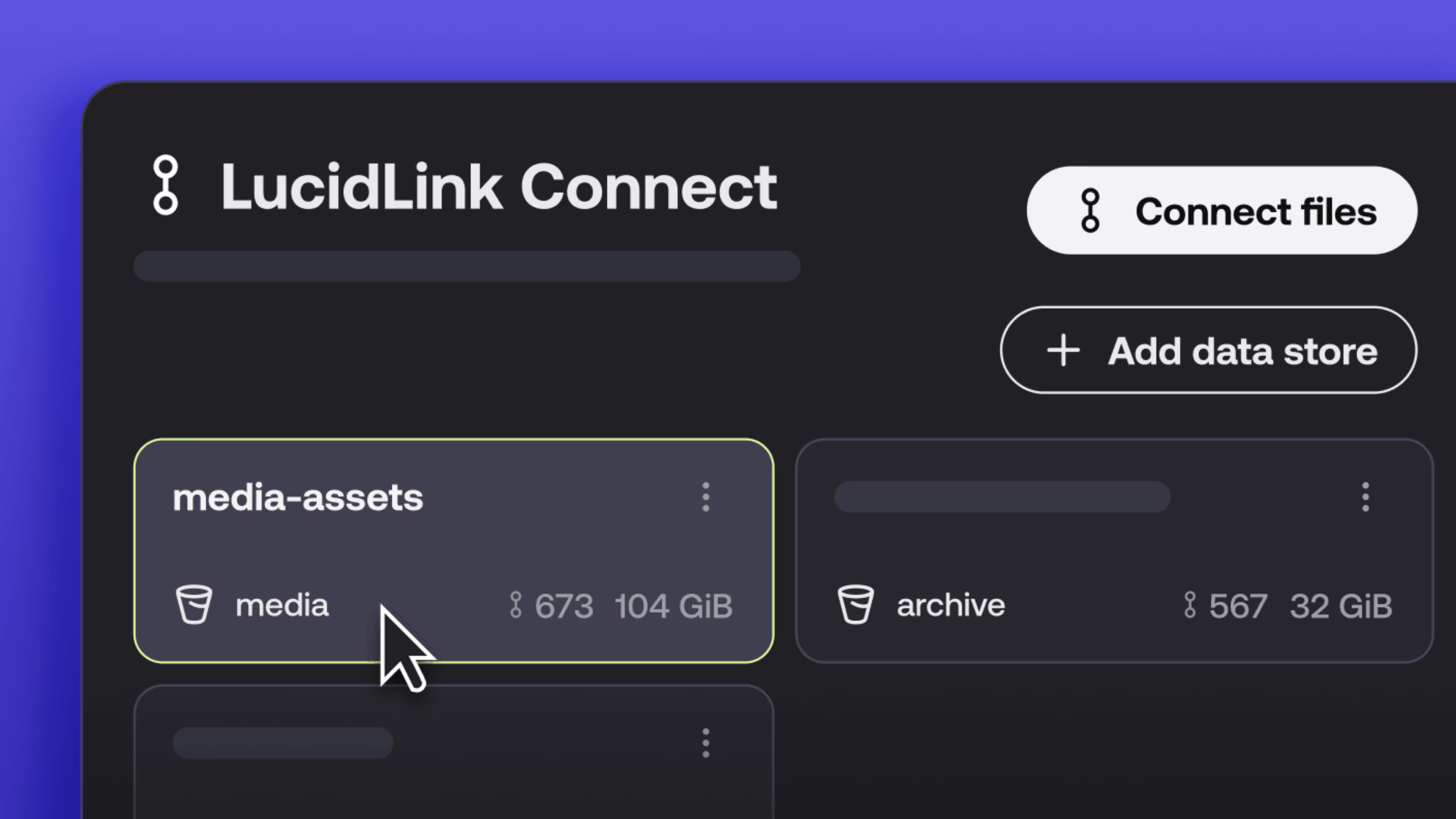
New in LucidLink Connect: simpler storage management
LucidLink Connect makes distributed storage easier to manage, with a new UI for connecting and managing data available through LucidLink.
06 October 2026, 2 mins read
Join our newsletter
Get all our latest news and creative tips
Want the details? Read our privacy policy. Not loving our emails?
Unsubscribe anytime or drop us a note at support@lucidlink.com.