Creative production
7 best ways to send large audio files
Last updated 26 May, 2026
8 mins

It takes a team to create great audio.
But today, your team is often working from a number of locations.
Whether you’re editing a podcast, sharing high-resolution sound effects for a short film or passing along your latest round of voice-acting files, working with a distributed team has its challenges. The biggest one: how do you send all those large audio files?
By finding a way to easily send large audio files, you can avoid nightmares like upload and download bottlenecks, lost file links or files corrupted in transit. Let’s dig into some options to help you pick the best solution for your team.
What makes a large audio file?
First, it’s worth taking a quick look at how audio files can get large enough that they need their own delivery solutions. For bigger projects, such as original soundtracks for movies, audio files can be a gigabyte or larger.
Some of the factors that impact audio file size include:
Length: this may seem obvious, but a 7-second clip of a sound effect is much smaller than, say, the full audio track for a film.
Sample rate: measured in Hz, the sample rate refers to the number of times per second that the original audio signal is sampled. 44.1 kHz is standard for audio CDs, while professional audio recordings can go as high as 192 kHz.
Bit depth: this measures the resolution of each sample. 16-bit is standard for CDs, while professional settings use 24-bit or even 32-bit.
Channel count: is the audio intended for stereos or surround sound settings? The number of speakers it’s designed for impacts the file size.
Codec: these algorithms compress and decompress audio data, reducing their file size while attempting to minimize the impact on audio quality. Codecs are divided between lossless codecs (like FLAC, ALAC and WAV), which are higher quality, and lossy codecs (like MP3 and AAC), which result in a lower-quality audio experience.
Ways to make a large file smaller
When faced with transferring a large audio file, your first course of action may simply be to use a tool to make it smaller.
These tools are worth explaining quickly, since they work in concert with the transfer methods we’re about to cover. Consider these the packers, while the services in the next section are the movers.
There are two main ways of “packing” large audio files so they’re easier to “move”:
Compression formats: all-purpose data compression tools like RAR and ZIP allow you to make files smaller before sending them. These aren’t specifically designed for audio but can be used to make audio files smaller before sending them via one of the services below.
File splitting: many compression tools (like WinRar and 7-Zip) allow you to break a large file into smaller pieces before compressing them as RAR or 7z archives. They then need to be recombined once delivered to the appropriate recipient, often using the same tools.
Neither of these techniques actually transfers the file, and file splitting can be accomplished manually, by sending each audio steam separately. But you may see references to compression format or file splitting when attempting to send large audio files, so they’re worth understanding as possible steps along the way to delivery.
How to send large audio files: 7 best ways
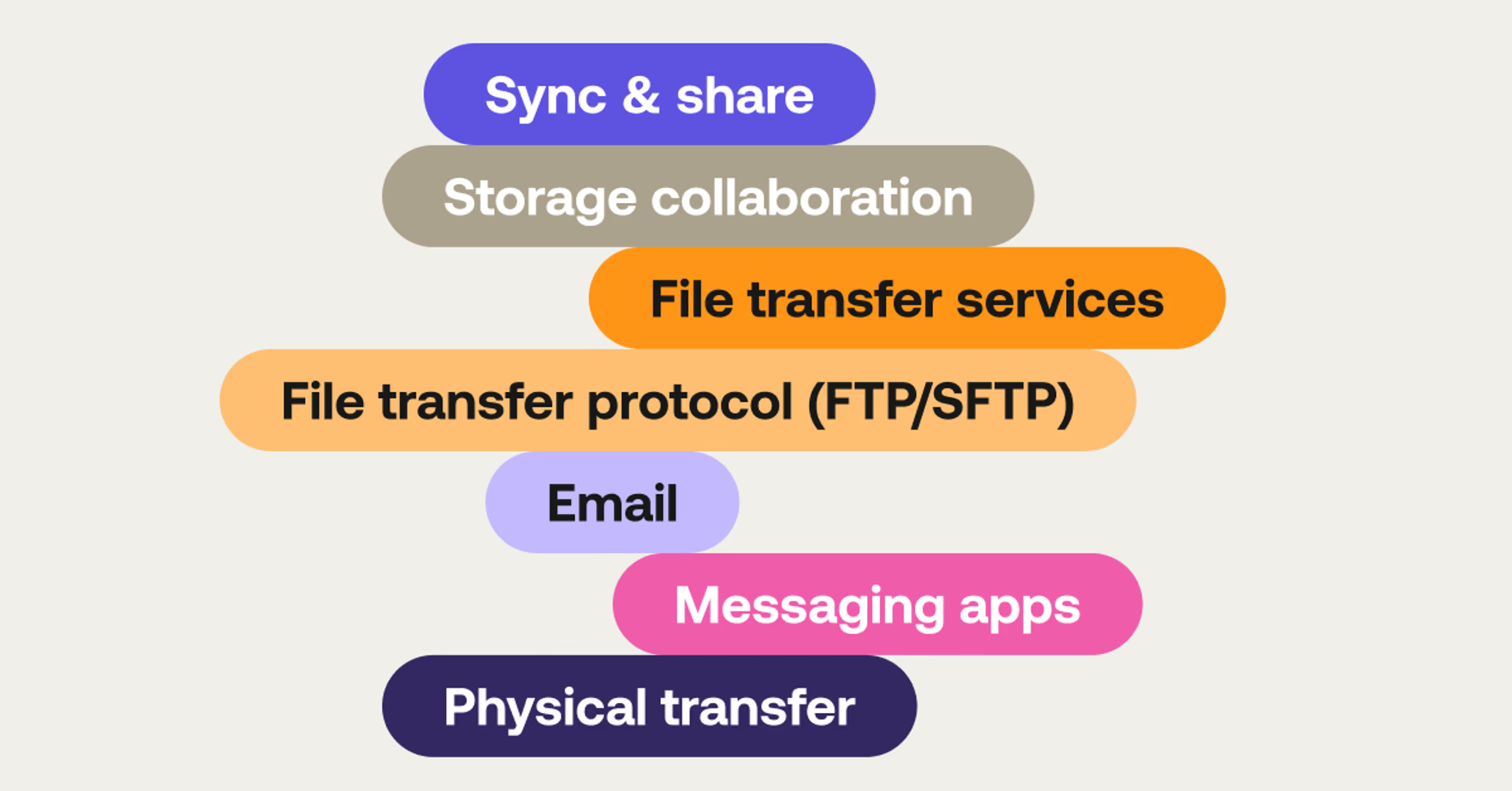
1. File streaming platform
To send large audio files, you don’t actually have to send them at all.
LucidLink lets distributed teams work from the same filespace in real time — without downloading, syncing or moving data between systems.
That means as soon as a recording is finished, it’s immediately available to everyone who needs it.
Even large, high-resolution audio files open quickly and play smoothly. That’s because only the parts of the file you’re actually using are streamed, rather than transferring the whole thing first.
From the user side, it feels familiar, like working from a shared drive. But behind the scenes, everything lives in the cloud and stays perfectly in sync.
Pros:
No more sending files back and forth
Guest Access allows you to securely share files or folders with anyone
Start reviewing and editing as soon as recording is done
Handle large files without long wait times
Everyone works from the same up-to-date version
Works with the tools you already use
Built-in security keeps files protected
Cons:
You’ll need an internet connection
Want to see it in practice? Here's how Pushkin Industries uses LucidLink to manage audio production across a distributed team. Read the story here.

2. Sync and share
Sync and share solutions like Google Drive, Microsoft OneDrive and Dropbox work the way they sound. First, users send large audio files to a shared drive in the cloud. After this, other users can access it via a simple link, or ongoing access to a particular folder.
Let’s say you’ve got the latest edit of a podcast you’d like to share with hosts, clients or guests. After uploading it to one of these services, it would be instantly synchronized across all relevant devices, including mobile and browser.
Examples: Google Drive, Dropbox, OneDrive, iCloud
Pros:
Syncs with services you may already use (Gmail, Outlook)
Free versions available with limited storage
Paid versions can accommodate large libraries
Data normally protected by storage service
Cons:
Transfer speeds dependent upon user’s internet service
Libraries may need to be organized and managed
Free versions not designed for long-term use
Have to download and re-upload every file
Relies on local copies, leading to version conflicts
Replicating your data many times and filling up users hard drives
3. File transfer services
Think of file transfer services as an efficient way to send large audio files from point A (your hard drive) to point B (someone else’s hard drive).
While “sync and share” options keep the file stored in the cloud for constant access, transfer services quickly and efficiently deliver a link to the target recipient so they can then download the file to their computer.
Some of the services have additional enterprise features worth considering. MASV has automation to help with recurring file-delivery workflows, while FileStage focuses on the review process, allowing stakeholders to leave comments right on the audio file.
Examples: WeTransfer, Signiant, Filestage, MASV
Pros:
Fast transfer of large files
Intuitive design: Works much like emailing
Enterprise features available for some services
Cons:
Most services are paid beyond basic usage
May require additional compression or file-splitting for largest files
4. File transfer protocol (FTP/SFTP)
File transfer protocol (or FTP) is another way to send large audio files from one host to another over a network.
It was developed in the early days of computer networking and requires a bit of setup and maintenance. Nevertheless, it remains a common way for people to upload and access a shared set of files. To use FTP (or its more secure evolutions, FTPS and SFTP), you use a program called an FTP client to connect to an FTP server. After logging in, you can upload and download files.
Think of it as a shared storage room or mailroom that only people on your team have the key for. It can be useful for teams with a lot of tech fluency, regular backup and archiving needs, or enterprise-scale data transfers.
Examples: FileZilla, Cyberduck, WinSCP
Pros:
Handles very large files efficiently
Very customizable and widely compatible
Can be automated for regular file transfers
Cons:
Requires high level of technical know-how to setup, manage and access
FTP less secure than FTPS and SFTP
5. Email
Probably the easiest and most immediate way to send a file is through email. But there’s a catch: most email services have relatively low limits to the size of an attachment. Gmail taps out at 25 MB per send, while many other services don’t go higher than 20 MB.
However, you can always compress a file using something like WinRAR or 7s to make it smaller before sending it as an attachment.
Examples: Gmail, Outlook, Yahoo! Mail
Pros:
Extremely simple sending process
Integrates well with other services, including sync and share
Accessible to wide variety of users
Cons:
Size limits make large audio files difficult
Emails aren’t as well organized as storage systems
Email security is typically lower than other, more secure file transfer methods
6. Messaging apps
It’s also worth considering messaging services, which can vary widely as a vehicle to send large audio files.
Secure, encrypted channels like Signal and Telegram are actually pretty good for this purpose, allowing users to share reasonably large files directly within chat conversations, or to even create groups for collaborative sharing.
While these don’t work as long-term archives, they can work well in a pinch. Other messaging apps, like those on Instagram or Facebook, only allow you to record and play audio directly within the chat interface.
Examples: WhatsApp, Telegram, Signal, Facebook Messenger
Pros:
Easy interface for non-technical users
Accessible across smartphones, tablets, browsers and more
Some services, like Telegram, are both secure and allow relatively large file size (up to 2 GB)
Cons:
File size limits vary greatly
Storage may be temporary, depending on the service
Requires users to make accounts on the platforms
7. Physical transfer
Lastly, let’s not forget the old-fashioned way to send large audio files: physically connecting a hard drive to the destination computer.
You could travel to a central location, like an office, to access a shared hard drive or physically mail a USB drive containing the data. While this method is certainly analog, it’s still used by some people to transfer information that’s so confidential it can’t be trusted to any form of internet access.
Examples: USB flash drives, external SSDs
Pros:
Unlimited size
Absolute security, assuming you trust the people doing the physical transfer
The actual file transfer is as simple as plugging in a USB cable
Cons:
High cost to purchase individual storage devices and individually ship them
Risk of damage due to physical handling during transport
Much slower than other methods
Share large audio files easily with LucidLink
LucidLink combines many of the best qualities of the options we’ve covered, making it ideal for creative teams.
You can access and work on your audio files the moment they’re shared. It’s as easy as using a USB hard drive that plugs into your computer. And its zero-knowledge, end-to-end encryption means no one outside your organization will ever be able to see what you’re sending. Meanwhile, precise access controls give you complete control over who has access to what.
Of course, LucidLink isn’t just for sharing large audio files. It also makes it simple to send large video files and provides a centralized hub for all of your team’s projects. Why not try it for yourself?
Get a free trial of LucidLink today.
FAQs
A fast and efficient way to send large audio files is by using tools like LucidLink, which let you work directly from shared cloud storage without needing to upload or download files. This eliminates long transfer times and makes collaboration smoother for teams working with high-resolution audio. Traditional alternatives like Google Drive or Dropbox can also be used, but they often require full file uploads and downloads, which can slow down workflows when files are very large.
Keep reading

Collaboration
Creative production
Video editing workflow: a guide for collaborative teams
Discover how to create a collaborative video editing workflow. Get tips on how to turn your editing process into a seamless, team-based experience.
31 August 2026, 14 mins read

Creative production
Collaboration
How to send videos without losing quality: 3 best ways
Learn how to send videos without losing quality with these three easy methods. Discover the best tools for fast, high-quality video collaboration.
15 July 2026, 6 mins read

Collaboration
Creative production
Video content marketing guide: how to scale in 2026
Get strategies to produce high-quality video content marketing at scale — without slowing production or overloading your team.
26 May 2026, 14 mins read
Join our newsletter
Get all our latest news and creative tips
Want the details? Read our privacy policy. Not loving our emails?
Unsubscribe anytime or drop us a note at support@lucidlink.com.