Product & news
Keep critical files ready with pinning
Last updated 14 November, 2025
3 mins

Stuck in a coffee shop with bad Wi-Fi and a deadline?
That’s where pinning in LucidLink comes in. It’s a simple but powerful way to make cloud files behave like they’re right on your local drive, even when your connection is slow.
In this post, we’ll break down what pinning is, when to use it and how to set it up in just a few clicks.
Pinning works across macOS, Windows and Linux (via the command line), so you can use it wherever you work.
What is pinning?
Pinning lets you preload files or folders to your local cache, so they’re always available, even if your connection slows to a crawl.
LucidLink proactively pulls that file from the cloud and keeps it cached locally until you unpin it.
Because you're still connected to the cloud, you’re not creating a static copy. Pinned content remains live in your filespace, staying in sync automatically.
If a teammate updates something in a pinned folder, the changes show up automatically — no re-pinning needed. You’re always working from the latest version, from a single source of truth.
Why it matters
Picture this:
You’re gearing up for a multi-day video shoot and you already know the Wi-Fi’s going to be a nightmare.
You’re walking into a client meeting and can’t trust the internet.
You’re on a long flight and want to knock out some edits without worrying about connection.
With pinning, you don’t have to stress. Just lock in the files you need ahead of time, and they’ll be right there when you need them — no loading bars or surprises.
It’s a safety net for modern workflows that rely on flexibility.
How it works
On macOS or Windows, right-click any file or folder and select Pin. LucidLink will cache all the content locally and keep it synced in the background.
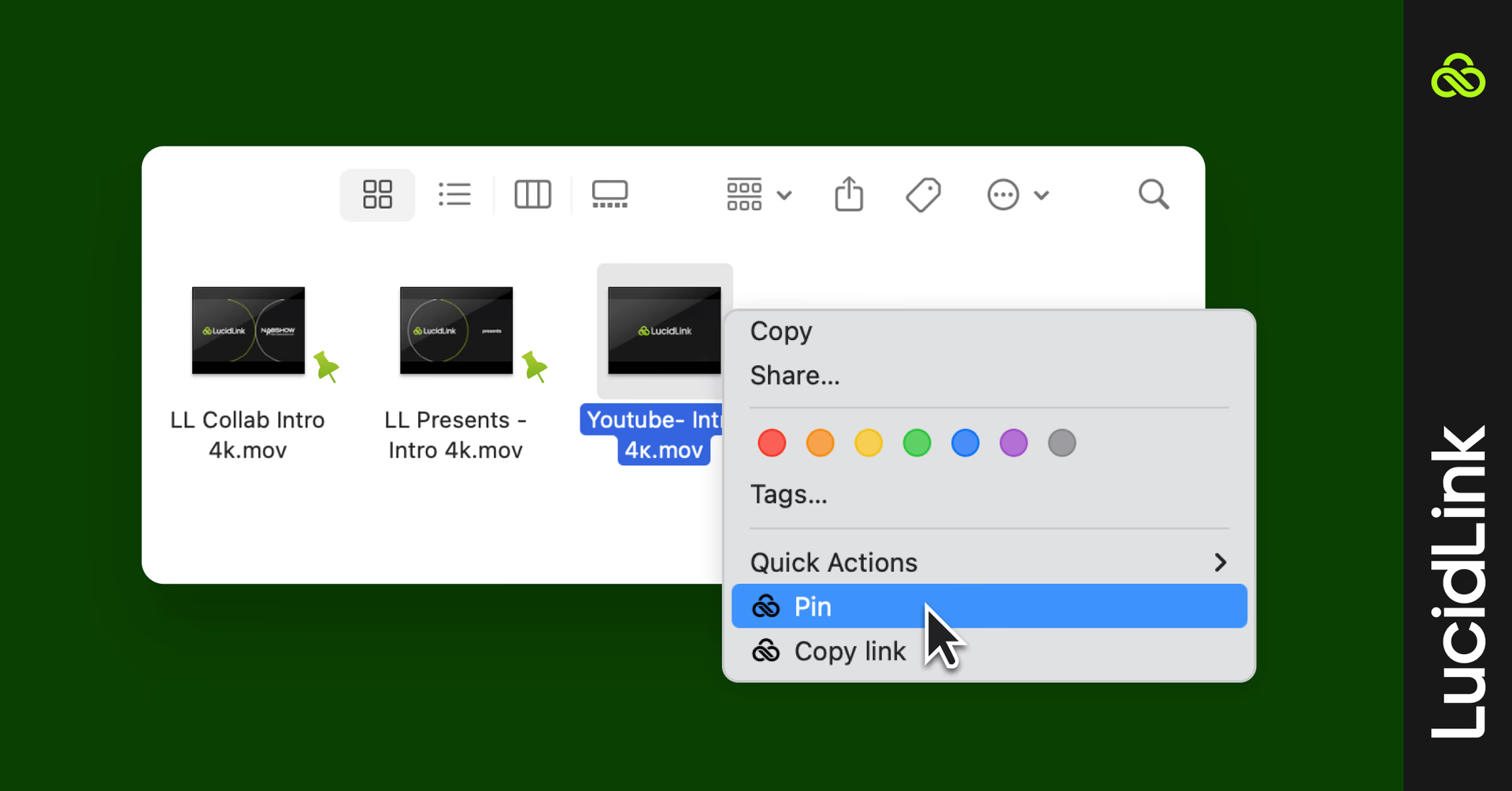
You’ll see icon overlays next to the file name to track the status:
Blue: actively retrieving files from the cloud
Green: fully pinned and available offline
Orange: unable to finish pinning due to cache limits
Pro tip: leave room for the rest of your workflow
Pinning can use up to 80% of your total cache and leaves the rest for streaming other files as you go. If you’re working with large files or multiple projects, check your cache settings to make sure you’ve got enough space.
Prefer the command line?
If you prefer running the command line on Linux (or any system), visit our pinning files and folders guide.
Want to check how much space your pinned data is using?
Run lucid cache to see current disk usage and pinning limits at a glance.
Real-world flexibility
Pinning keeps you in control. Decide which files stay available at local speeds at all times.
Maintain the advantages of a cloud workspace without delays, version conflicts or duplicates.
Your files are consistent, reliable and ready when you need them.
Want to learn more LucidLink best practices?
Check out our other feature guides here:
Or reach out to our team — we’re happy to help you optimize your setup.
Keep reading
Product & news
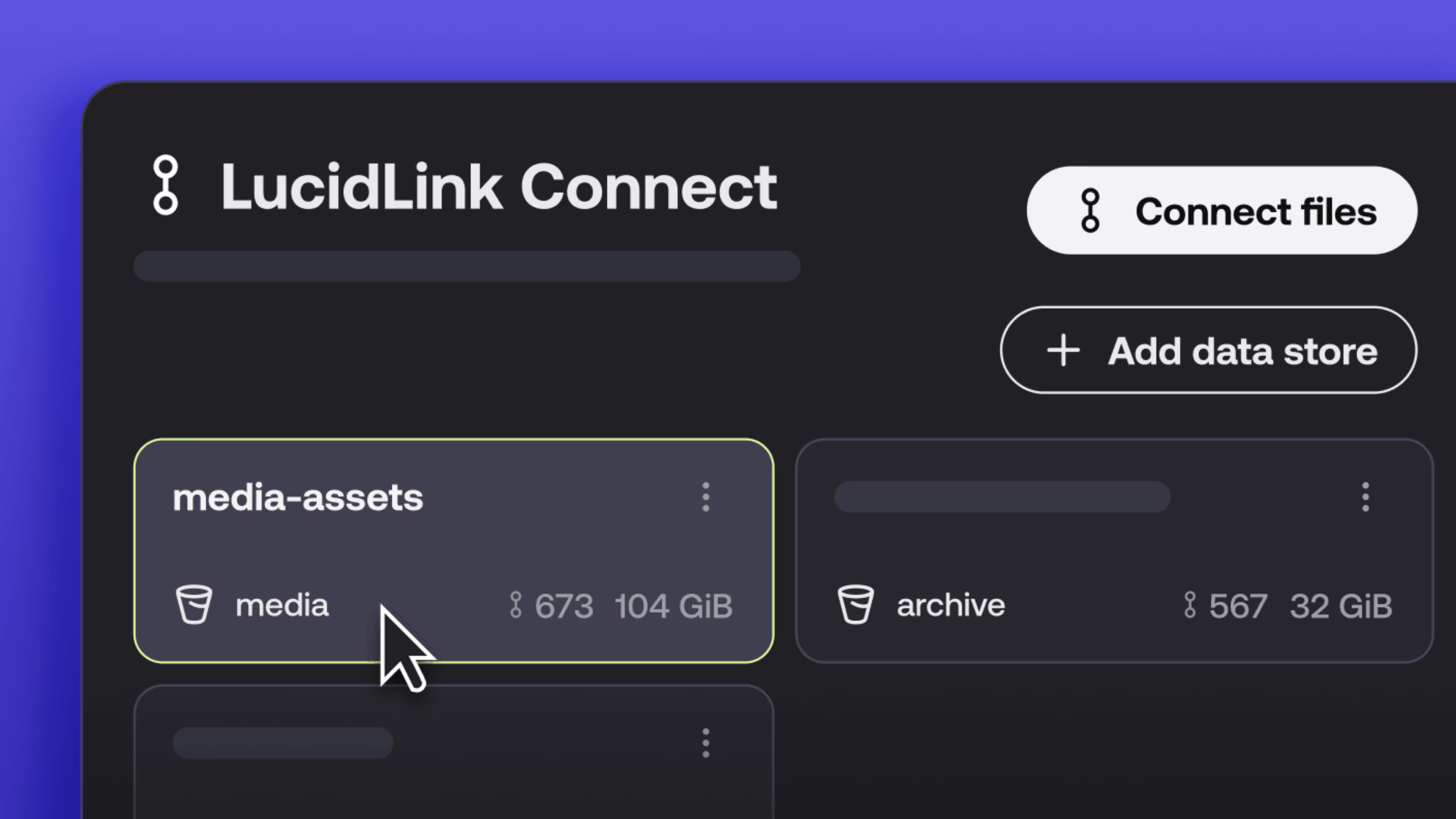
New in LucidLink Connect: simpler storage management
LucidLink Connect makes distributed storage easier to manage, with a new UI for connecting and managing data available through LucidLink.
06 October 2026, 2 mins read

Product & news
LucidLink named Leader in G2's Cloud File Storage report: here’s what customers say
See why LucidLink is a leader and rated #1 for customer satisfaction on G2’s Cloud File Storage report.
03 September 2026, 3 mins read
Product & news
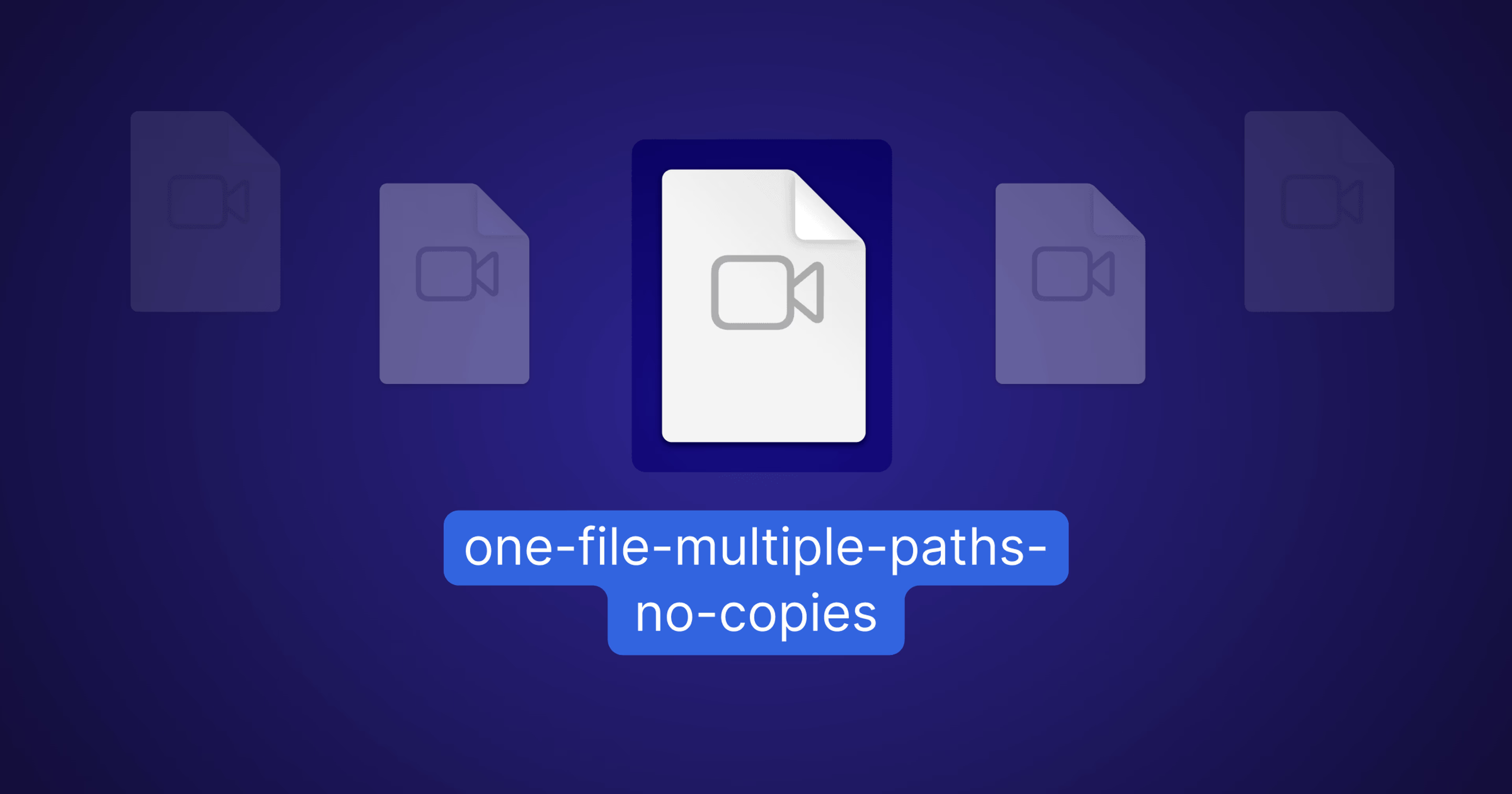
Hard links: one file, multiple paths, no duplication
Hard links let VFX teams reference the same file across multiple paths without duplicating data. Available now at no additional cost.
02 September 2026, 4 mins read
Join our newsletter
Get all our latest news and creative tips
Want the details? Read our privacy policy. Not loving our emails?
Unsubscribe anytime or drop us a note at support@lucidlink.com.