Product & news
LucidLink tips & tricks: features you may have missed
Last updated 26 January, 2026
3 mins
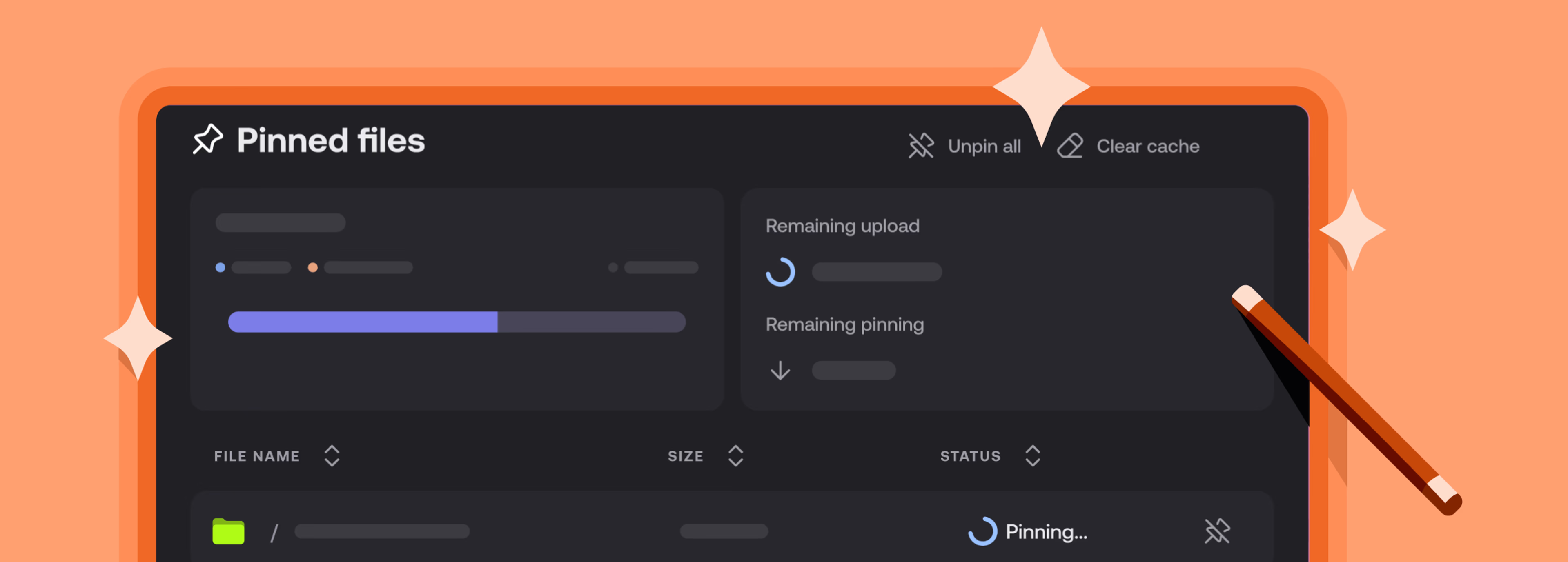
LucidLink has plenty of under-the-radar features that can elevate the way you work. Some save you time, others give you peace of mind and a few might surprise you.
If you haven’t already, check out part one, covering our sales engineer’s foundational tips on security, setup and smart settings.
Here are some of our favorite lesser-known tricks and features that even longtime users sometimes overlook.
1. Decoding the remote upload indicator
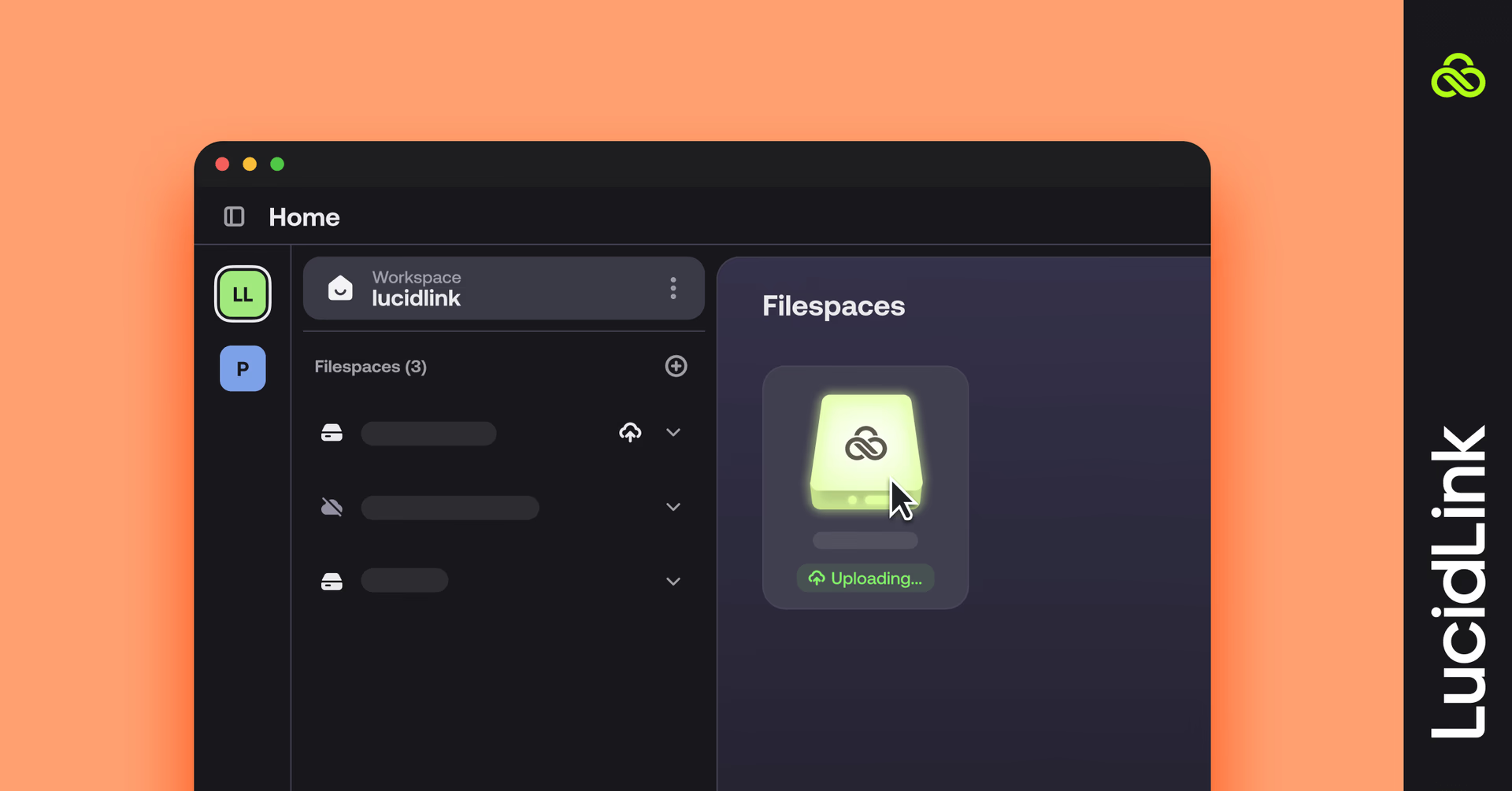
Ever noticed little circle icons on your files? That’s the remote upload indicator at work.
Blue circle: someone else on your team is uploading or modifying the file. Best to wait before opening it, unless the format allows partial access.
Orange circle: upload got stuck, usually because someone went offline mid-transfer.
A small detail, but one that can save you from confusion.
Learn more here.
2. Snapshots: restore what you need
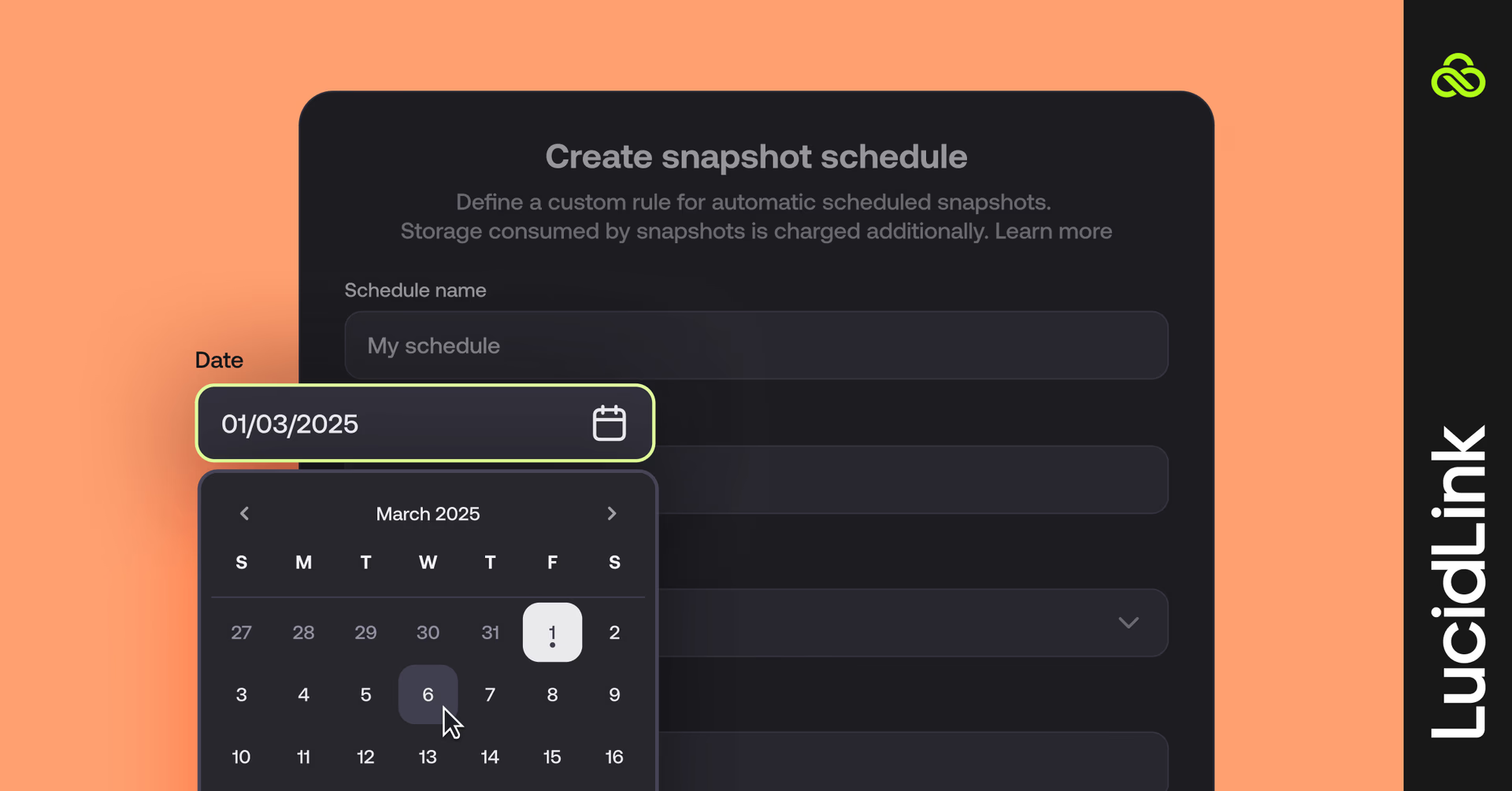
Accidentally deleted something or need an earlier version? Snapshots make that possible.
They mirror your live filespace permissions and let you roll back to previous versions based on the schedule set by your admin. Think of it as a built-in safety net for your data.
Recovering data from a snapshot? Here’s a video guide.
3. The 80/20 rule of pinning
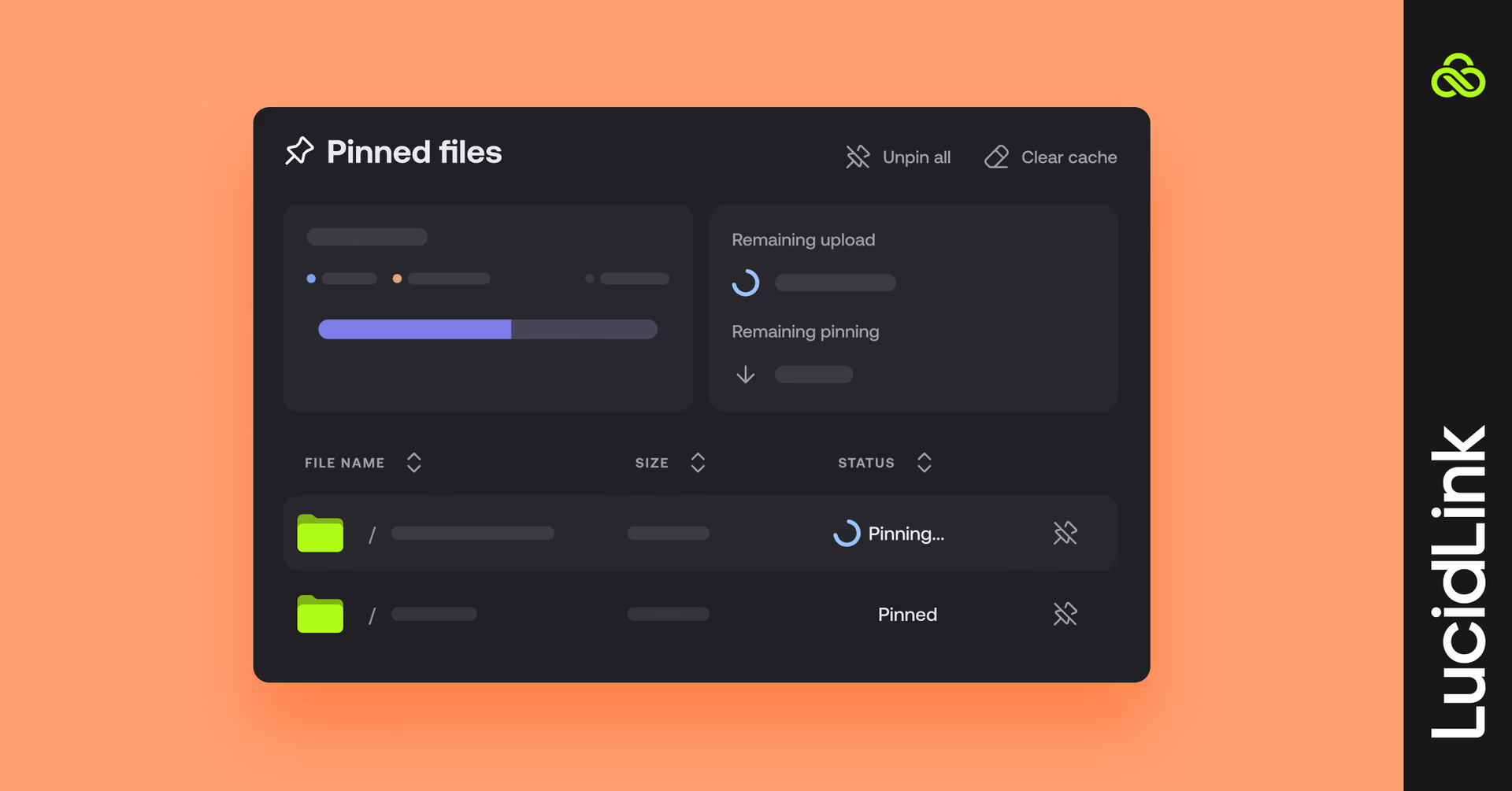
Here’s the secret to smarter caching: only 80% of your cache size can be used for pinning files.
For example, if your cache is set to 25 GiB, roughly 20 GiB is available for pinned files, the rest is reserved for streaming data.
Think of it like reserving space for essentials while keeping room to breathe: plan you pinning strategy wisely and your workflow will run seamlessly.
4. LucidLink on the go
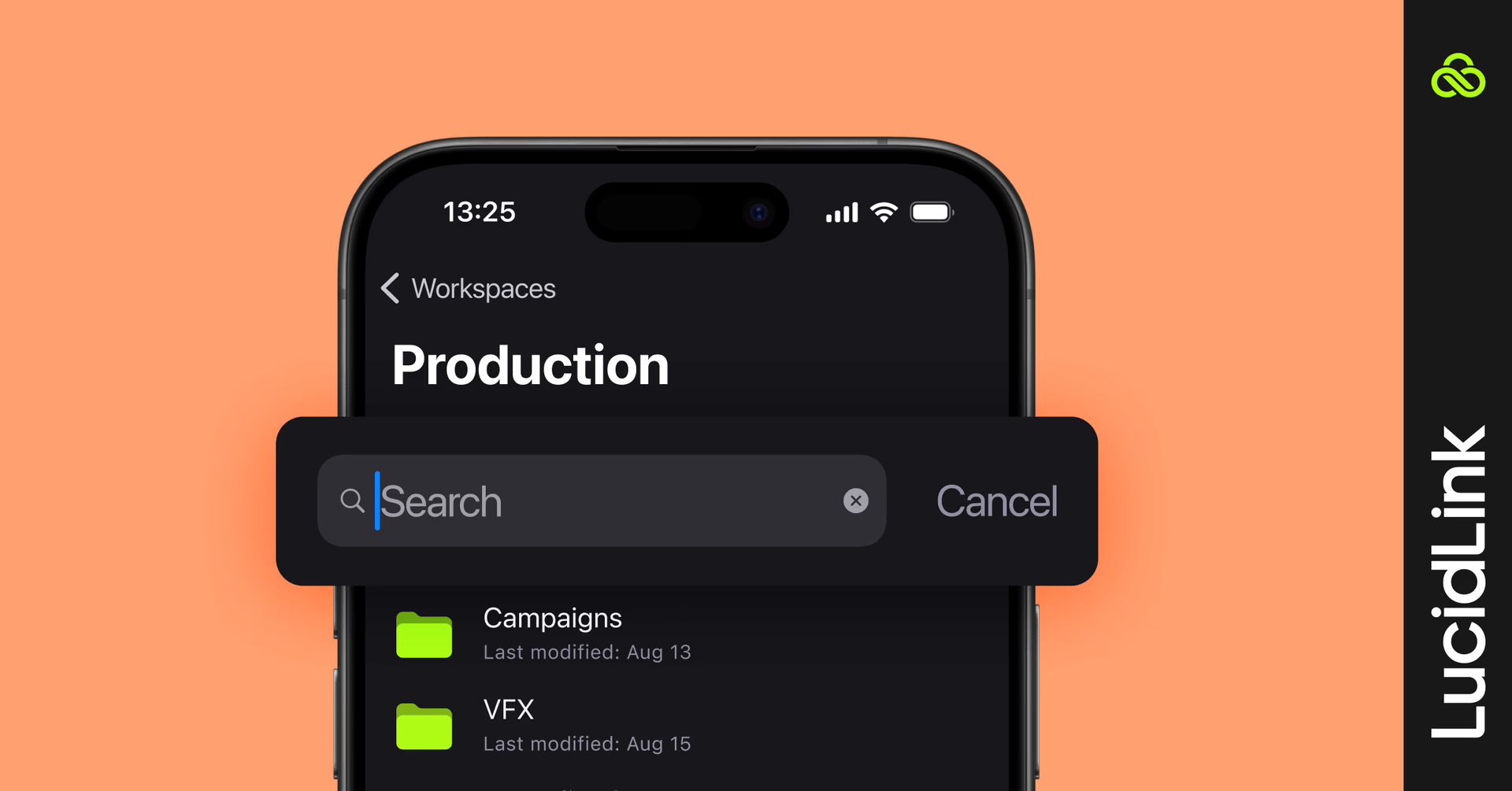
Your workflow doesn’t have to stay at your desk. Access your files anytime, anyplace with LucidLink’s mobile apps for iOS and Android.
Browse your filespace and preview files on the go
Upload directly from your camera roll or file browser
Share files via your phone’s native apps (WhatsApp, Google Drive, Mail and more)
Stream media instantly without downloading entire files
The mobile app keeps a smart cache of recent files and supports background uploads (on Android and the latest iOS). Great for quick checks, field uploads or reviewing edits on your commute.
Download LucidLink for mobile and take your filespace with you.
5. Speed up editing with Adobe integrations
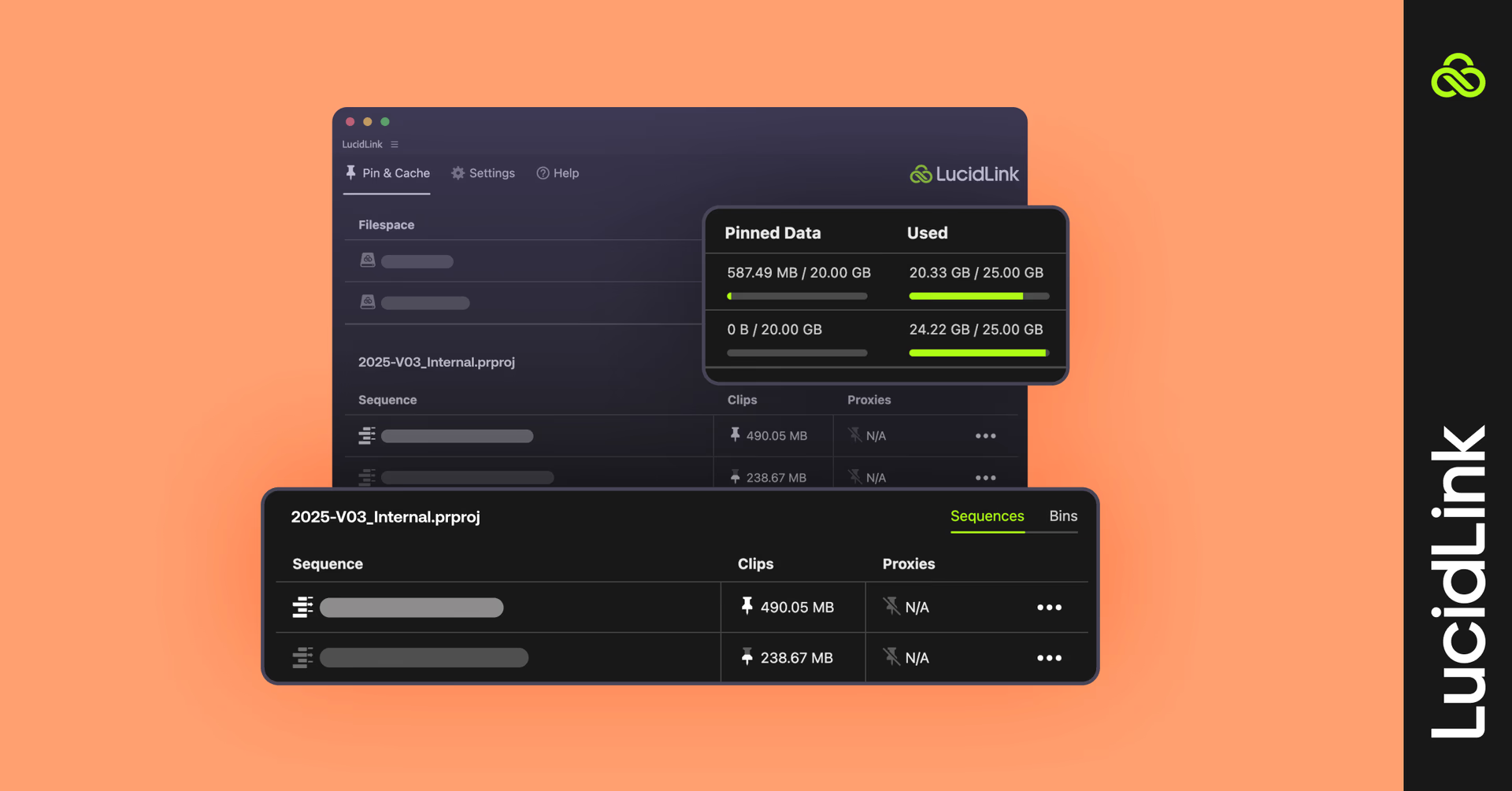
Our custom plugin for Premiere Pro and After Effects makes it simple to pin LucidLink data right from your workspace. No more digging through Finder or Explorer to relink media. It’s a small workflow tweak with a big time payoff.
Learn more about the LucidLink Panel for Premiere Pro here.
If you use Frame.io, don’t miss the preview of our LucidLink + Frame.io integration that streamlines review and approval without needing to download files first.
Bonus tip: share the love, earn rewards
Spread the magic of instant file access and real-time collaboration (and get rewarded for doing it). Just share your unique referral link and you’ll earn rewards for every friend who joins. Start referring now
Stay tuned for more tips and join the LucidLink community to let us know your favorite LucidLink hacks.
Keep reading
Product & news
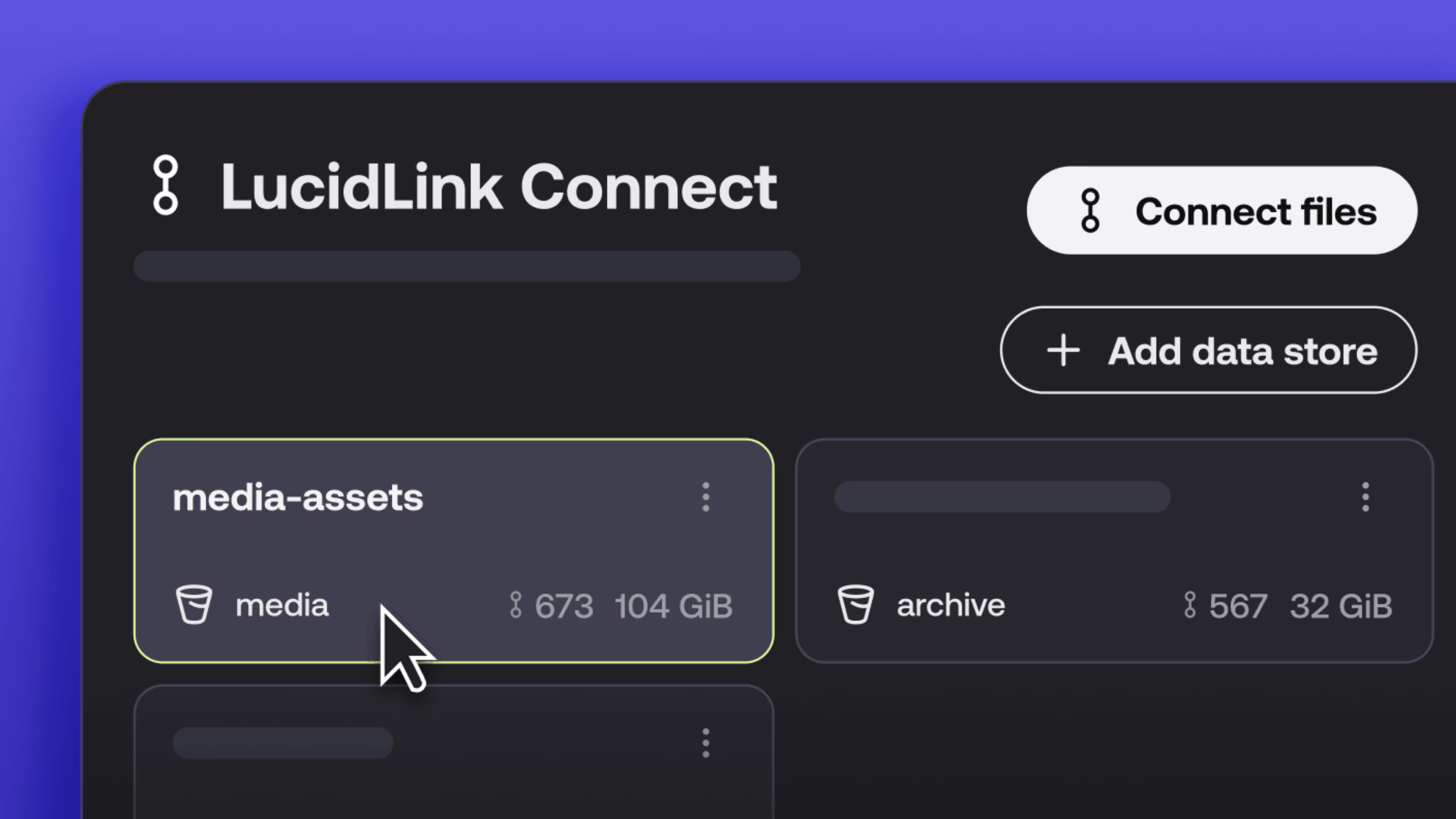
New in LucidLink Connect: simpler storage management
LucidLink Connect makes distributed storage easier to manage, with a new UI for connecting and managing data available through LucidLink.
06 October 2026, 2 mins read

Product & news
LucidLink named Leader in G2's Cloud File Storage report: here’s what customers say
See why LucidLink is a leader and rated #1 for customer satisfaction on G2’s Cloud File Storage report.
03 September 2026, 3 mins read
Product & news
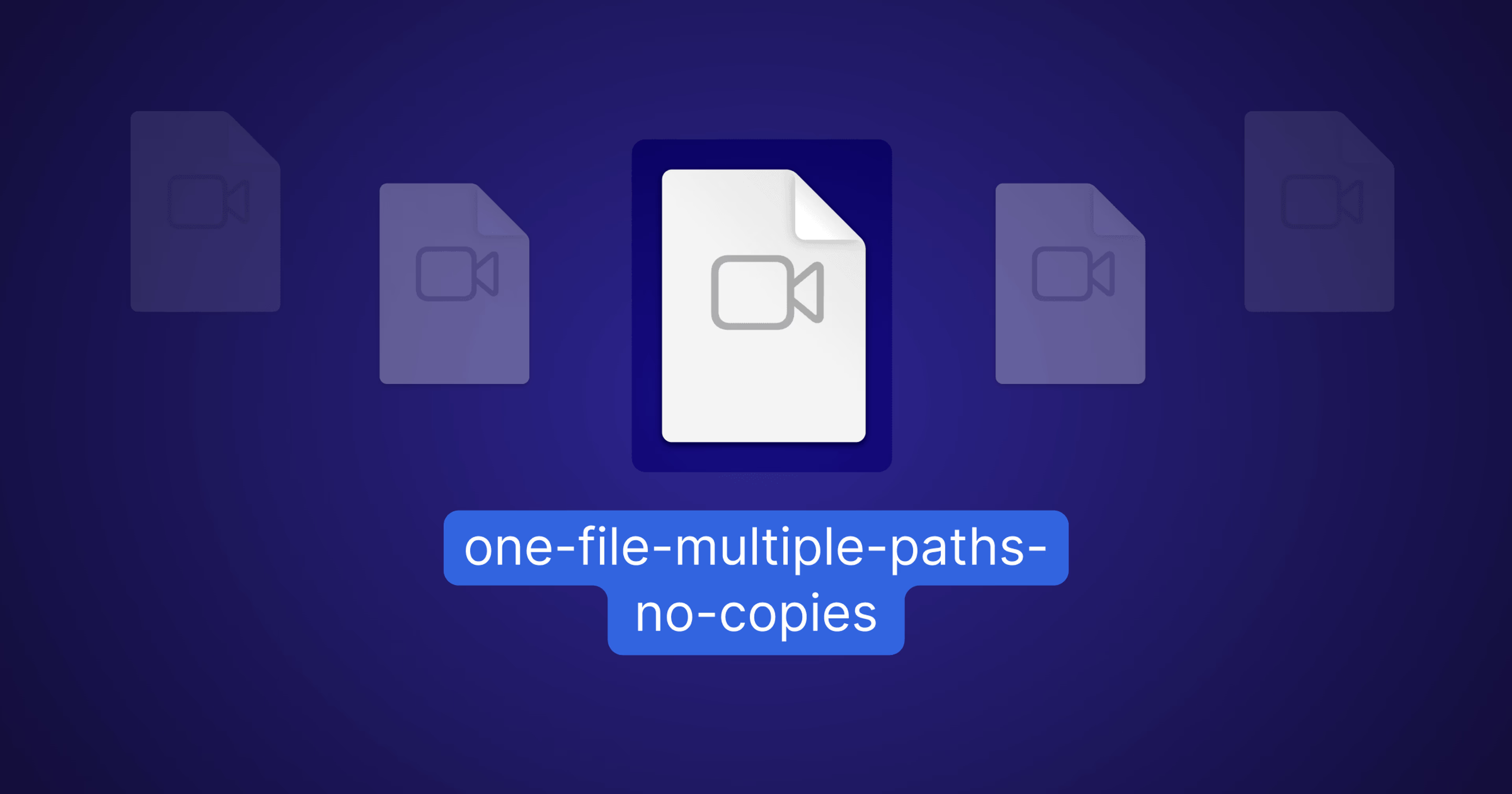
Hard links: one file, multiple paths, no duplication
Hard links let VFX teams reference the same file across multiple paths without duplicating data. Available now at no additional cost.
02 September 2026, 4 mins read
Join our newsletter
Get all our latest news and creative tips
Want the details? Read our privacy policy. Not loving our emails?
Unsubscribe anytime or drop us a note at support@lucidlink.com.