Collaboration
Creative production
Best remote video editing software for distributed teams in 2027
Last updated 13 November, 2026
9 mins
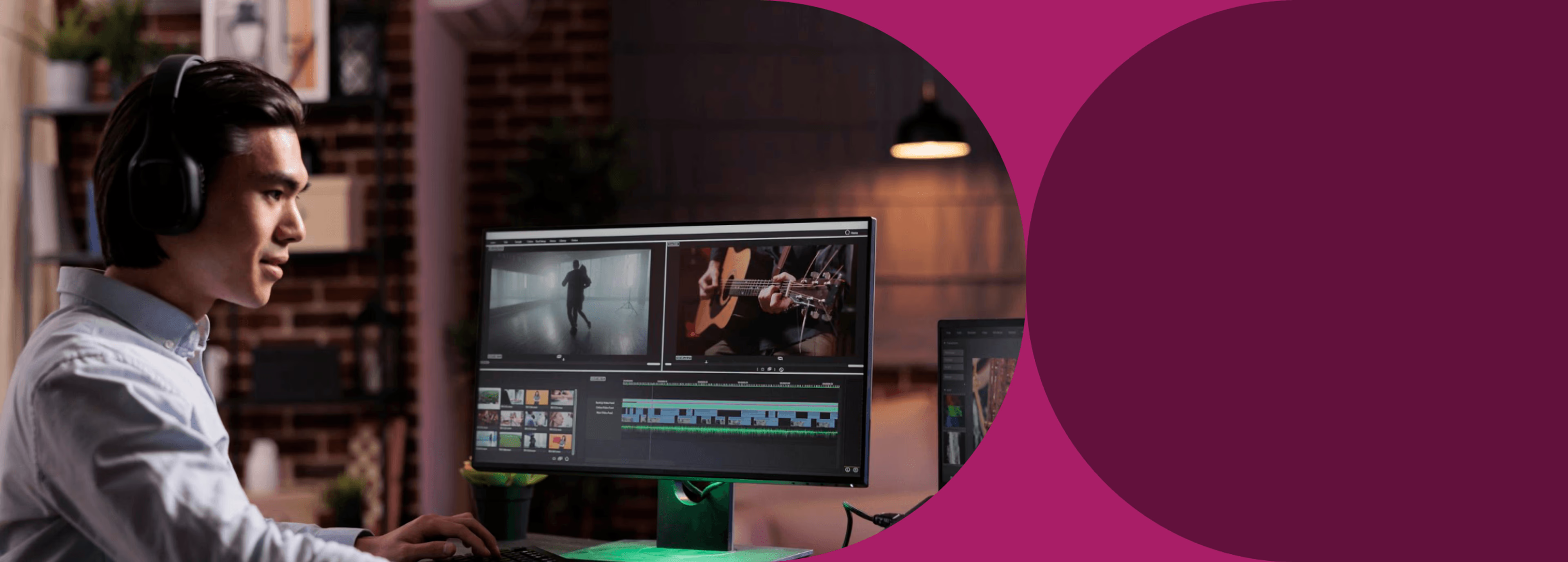
The edit doesn’t always stop when your workday ends. The next editor might be halfway around the world, ready to pick up where you left off.
Search for remote video editing software and most lists put Premiere Pro, Parsec and Frame.io side by side, as if they do the same job.
They don’t. Each solves a different part of the workflow.
Think of remote video editing software as a stack: an editing app, shared media and a way to review cuts. Choosing an editor often comes down to preference. What matters more is whether everyone on your team has fast, reliable access to the footage they need to keep the work moving.
This guide sorts the best tools by job, compares them side by side and helps you choose the setup that fits your team.
What is the best remote video editing software?
The best remote video editing software brings together a few tools.
You need an editing app your team knows, a way to access shared media and a place to review cuts. Premiere Pro, DaVinci Resolve, Avid Media Composer and Final Cut Pro handle the edit.
LucidLink gives everyone access to the same media, while Frame.io and Evercast help teams review cuts and share feedback.
If your footage has to stay on one machine, remote desktop software like Parsec is the alternative.
Three ways to get media to remote editors
Every remote setup has to answer one question: how does footage get from where it lives to the editor’s timeline?
Most teams use one of three approaches.
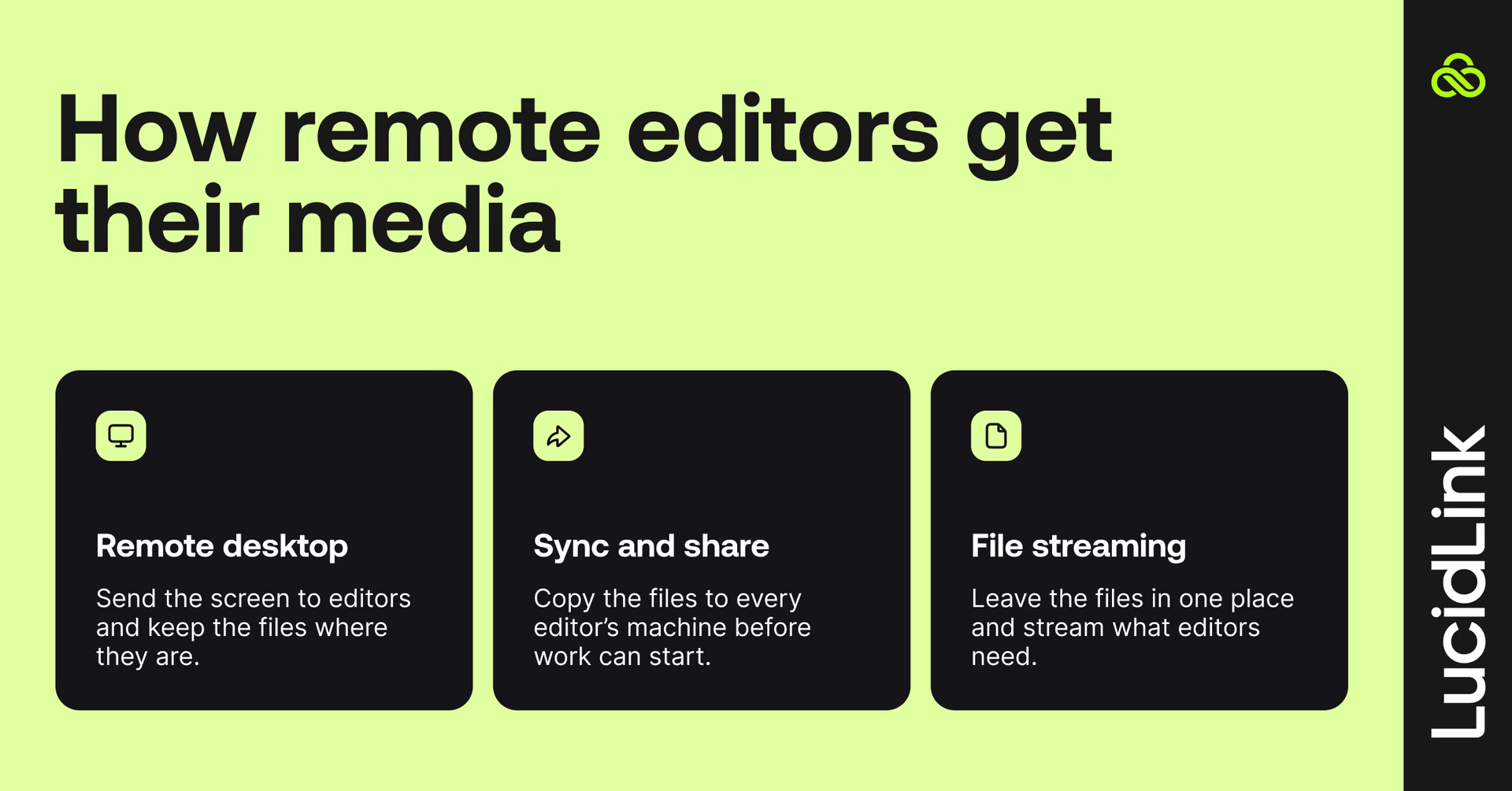
Remote desktop: send the screen, keep the media
You connect to a powerful workstation in an office or a data center and edit on it as if you were sitting there. Only the picture, the audio and your mouse movements travel remotely.
It’s a good fit when media can’t leave a facility, or when editors need more power than their laptops offer.
The trade-offs: every remote editor needs a host machine to connect to, and picture and audio quality depend on the connection at both ends.
Sync and share: copy the media to everyone
Dropbox, Google Drive and OneDrive keep a full copy of each file on every device and sync changes through the cloud. That works well for documents, small teams and finished deliverables.
But teams handling large media libraries need cloud storage for video editing that gives editors access to footage without waiting for full downloads or syncs.
For a closer look at the trade-offs, check out file streaming vs sync and share.
File streaming: leave the media in one place
Media lives in a shared cloud filespace that mounts like a local drive. Your editing app streams only the data it needs, when it needs it, so editors can start cutting as soon as footage is uploaded.
Everyone works from the same files in the same locations, making collaborative video editing easier across distributed teams and reducing the need for duplicate copies.
This is the model behind most modern cloud video editing workflows. A local cache keeps recent media close, but you’ll still want a decent connection for footage you haven’t touched yet.

Best remote video editing software and tools in 2026
You don’t need every tool below. Most teams need one editing app, one way to share media and one place to review.
Here’s how the main options compare.
Job in the stack
Best for
Worth knowing
Tool
Premiere Pro
Editing
Teams that also work in motion, audio and design
Productions need shared storage
DaVinci Resolve
Editing, color, VFX and audio
Color-led work and a free starting point
Blackmagic Cloud shares the project, not your media
Avid Media Composer
Editing
Broadcast, episodic and film
Built around shared storage and bin locking
Final Cut Pro
Editing
Mac-based editors on fast turnarounds
Mac only
LucidLink
File streaming and shared storage
Distributed teams with large media and mixed editing tools
30-day free trial, then paid plans for reliable access to footage, even when it isn’t cached or pinned
Dropbox
Sync and share
Small teams and light assets
Full-file syncing slows down on large libraries
Frame.io
Review and approval
Asynchronous client and stakeholder feedback
Review tool, not working storage
Evercast
Live review sessions
Real-time dailies and remote creative sessions
Streams a session, doesn’t host your media
Parsec
Remote desktop
Reaching one powerful edit machine from anywhere
Quality depends on your connection at both ends
Your editing app matters less than you’d think for remote work. Every one of the first four can cut a great film. What differs is how each handles multiple people and shared media.
Remote video editing apps
Adobe Premiere Pro
Premiere Pro works well with the rest of Adobe Creative Cloud, making it a good fit for teams juggling motion, audio and design.
For bigger projects, Productions splits a large edit into linked sub-projects with locking, so editors can work in parallel without overwriting each other.
Productions need shared storage, which makes your storage choice part of the edit.
For tips on working together remotely in Premiere, check out our guide to collaborating in Premiere Pro.
Best for: teams that also work in After Effects, Audition or Photoshop
DaVinci Resolve
Davinci Resolve brings editing, color, visual effects and audio tools together in one app and it’s best known for its color tools.
The free version offers plenty to get started, and Studio is a one-time purchase rather than a subscription.
Blackmagic Cloud lets teams host a project library and collaborate on the same timeline. That covers the project itself, so every editor still needs access to the media.
Best for: colorists, indie filmmakers and teams that want maximum power without a subscription
Avid Media Composer
Avid Media Composer remains the standard for large broadcast and film productions, with collaboration built into how it works.
Teams share projects through shared storage and bin locking, so several editors can work on the same show without stepping on each other’s cuts.
Best for: broadcasters, episodic series and feature film teams
Final Cut Pro
Final Cut Pro is a good fit for Mac users who need to turn around a lot of content quickly.
The catch? It only runs on a Mac, so teams working across Mac and Windows may need another option for some editors.
If your work is social-first, CapCut is another option, with ready-made templates and tools that make it easy to produce videos for social media.
Best for: Mac-based editors and content teams working to daily deadlines
Shared storage for video production
LucidLink
Shared storage is the layer that tends to break first, because editing apps assume the media is already where they expect it to be.
LucidLink is a file streaming platform that mounts a shared cloud filespace on each editor’s machine like a local drive.
Your editing app streams only the data it needs, so a colorist in New York can open footage an editor in London uploaded a minute ago without waiting for a download. It works with any NLE and runs on Windows, macOS and Linux.
Best for: distributed teams with large media libraries and mixed editing tools
Dropbox
Dropbox is the familiar choice: simple sync, broad integrations and almost no onboarding. It works well for documents, light assets, handoffs and finished deliverables.
For video, the catch is that every editor downloads full files and re-uploads changes, which gets slow and risks version conflicts as libraries and teams grow.
For delivering finished cuts, our guide on how to send videos without losing quality compares the options.
Best for: small teams and lighter projects
Video collaboration tools for review
Frame.io
Review tools sit on top of your storage rather than replacing it, and they keep notes in one place instead of scattered across email, Slack and calls.
Frame.io is Adobe’s review and approval platform. Reviewers leave timestamped comments on a cut, versions stack up in one place and Camera to Cloud sends footage from supported cameras to your project during or shortly after capture.
It integrates with Premiere Pro and Final Cut Pro, and there’s a free plan to start.
If you use Frame.io with LucidLink, here’s how they work together.
Best for: asynchronous feedback from clients and stakeholders
Evercast
Evercast streams live editing sessions to remote producers, directors and clients in up to 4K at 60fps, with built-in video chat, frame-accurate playback and on-screen markup.
It gives your team the feeling of being in the edit suite together.
Best for: live remote review sessions, dailies and high-end post
Remote desktop software for video editing
Parsec
Remote desktop tools are for when footage can’t or shouldn’t leave a facility, so they sit alongside the tools above rather than competing with them.
Parsec gives you a remote connection to a high-powered workstation, with up to 4K resolution, 4:4:4 color, multi-monitor support and drawing tablet compatibility.
Editors connect from lighter machines while the media stays where it is.
Best for: freelancers and small teams who need to reach one strong edit machine
How LucidLink powers remote video editing
Remote editing tends to stall at one moment: an editor needs footage that lives somewhere else. A download, a sync or a shipped drive stands between them and the timeline.
LucidLink removes that step with cloud storage for video editing that lets teams access shared media without waiting for downloads or managing duplicate copies.
Here’s how it works:
Streaming on demand: your editing app pulls only the data it needs, so editors can start working as soon as footage is uploaded, even with 4K, 8K or RAW files.
A drive that acts local: the filespace mounts on each machine, so Premiere Pro, DaVinci Resolve, Avid Media Composer and Final Cut Pro treat it like ordinary storage.
One shared filespace: everyone sees the same files in the same places, so there are no duplicate copies to track and projects stay linked.
Caching and pinning: smart caching keeps frequently used files close, and file pinning preloads key assets for when you’re on weak Wi-Fi. For larger teams in one office, TeamCache serves LucidLink files at local speed.
Security without a VPN: zero-knowledge encryption and granular access controls protect your projects, and editors get secure remote access without a VPN.
LucidLink handles access to your media, but you’ll still need an editing app to cut the footage and a review tool like Frame.io or Evercast to share feedback. You’ll also need a reliable connection to access footage that isn’t already cached or pinned.
How Casual keeps video production moving across time zones
Casual, a video production agency, delivers more than 1,000 projects a year with teams across eight offices and three continents.
Projects run from 500 GB to 5 TB, and LucidLink has been the backbone of their global video production workflow since 2023.
Now, we can work globally and enable a 24-hour working day. For example, our Australia team can shoot something during their day, our London team can pick up the edit overnight and then it can be passed to a colorist in New York and a sound mixer in LA to finish off.
Sanica Apte,Executive Producer, Casual
Read the full Casual story here.
How to choose the right remote video editing setup
Start with where your media needs to live, then work outward.
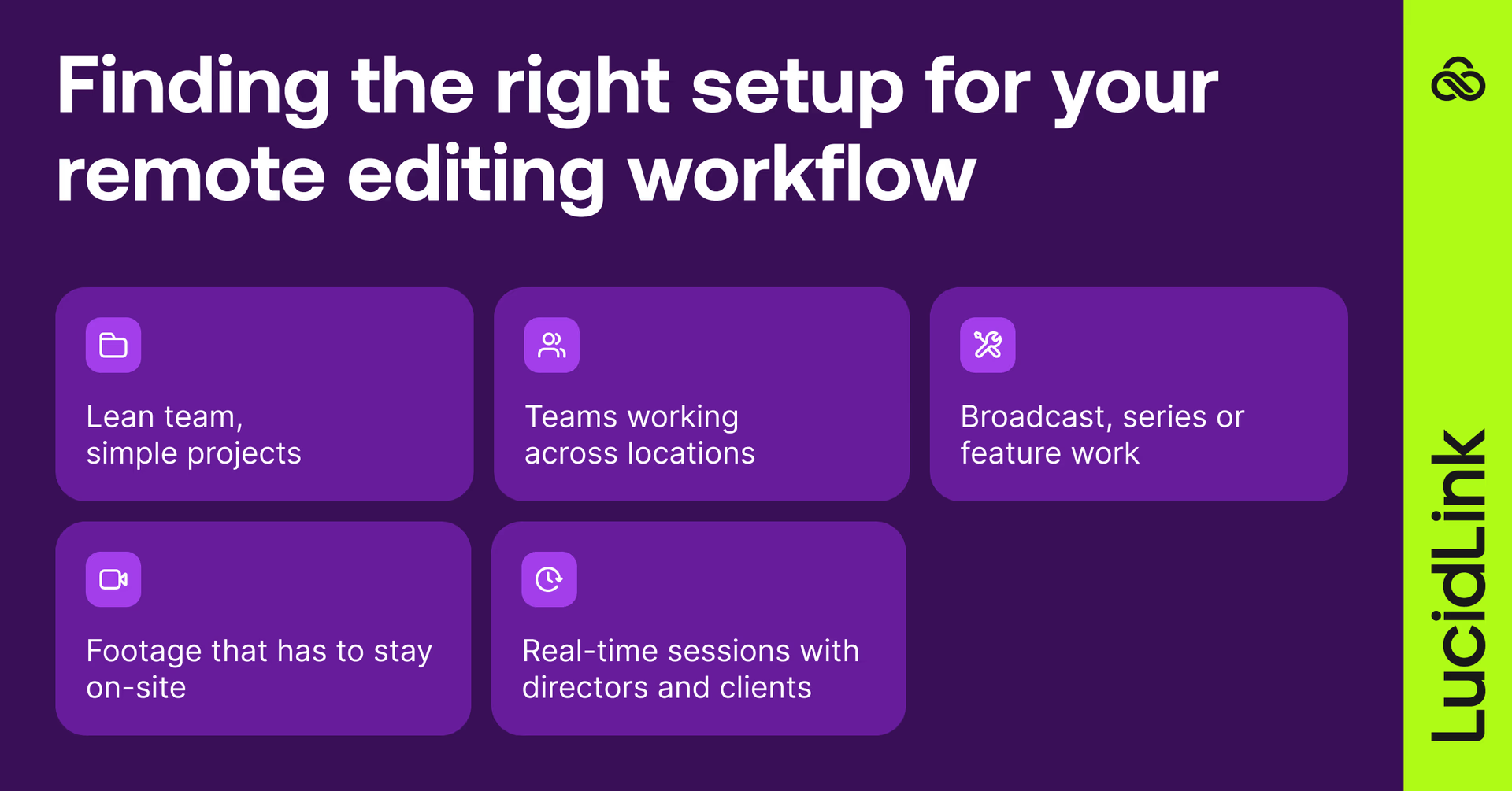
Small team, light projects: your editing app plus Dropbox or a similar sync tool will do. Add Frame.io’s free plan for feedback.
Distributed team or agency with freelancers: shared storage that streams media, your editors of choice and a review tool. This is where sync tools start to creak.
Broadcast, episodic or film: Avid Media Composer or Premiere Pro Productions, with shared storage underneath so editors can work in parallel.
Media that can’t leave a facility: remote desktop into on-site workstations with HP Anyware or Parsec.
Live sessions with directors and clients: Evercast alongside whichever storage you use.
Most teams land on a mix. Decide the storage layer first, because every other tool depends on it.
Habits that keep remote editing smooth
The right tools help, but a few shared habits make remote video editing easier day to day.
Our video editing workflow guide walks through the process from start to finish.
For distributed teams, these four habits are especially useful:
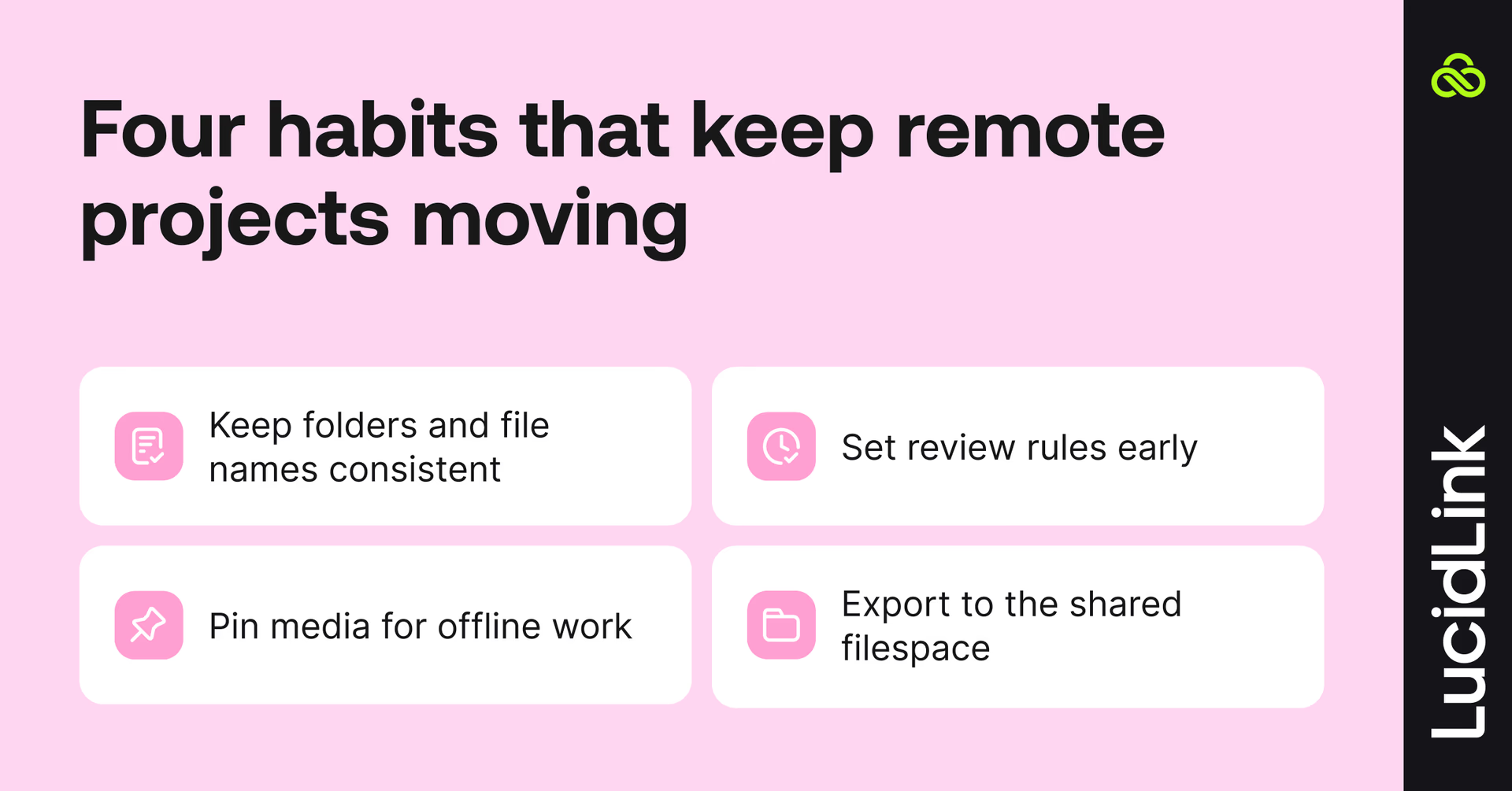
Agree on folder structure and naming early: a universal folder structure and naming convention means a new freelancer can find everything on day one. Our video asset management guide has more.
Set review rules early: share one link to the latest cut and agree a limit on revision rounds before work starts.
Pin what you’ll need offline: preload key media before you travel or work from a weak connection.
Export to the shared location: delivering straight to your shared filespace means everyone sees the latest version.
For more on what can go wrong when teams edit remotely (and how to avoid it) see our guide to remote video editing headaches.
Build a remote editing setup that holds up
Your team shouldn’t have to wait for the footage to catch up.
Choose the editing and review tools that fit your workflow, then give everyone access to the same media, wherever they’re working.
Ready to spend less time getting files ready and more time getting the cut right? Start your 30-day free trial of LucidLink.
FAQs
Yes. File streaming platforms like LucidLink send your editing app only the data it needs, and remote desktop tools like Parsec leave the media on a host machine and send you the screen. Either way, there’s no full download first.
Keep reading
Collaboration
Creative production
From ingest to delivery: where creative workflows really break
Creative workflows often slow down between tools and teams. See where five common handoffs create friction, lost context and readiness debt.
09 November 2026, 5 mins read
Collaboration
Creative production
The decision bottleneck: when AI output outpaces your workflow
AI can accelerate content creation, but review, approval and access still take time. Learn what to measure when output starts outpacing the workflow.
05 November 2026, 4 mins read
Collaboration
Creative production
The content readiness gap: why finished doesn’t mean ready
Content creation has never been faster. But here's why finished still doesn't mean ready to use, and what the readiness gap is costing your team.
27 October 2026, 4 mins read
Join our newsletter
Get all our latest news and creative tips
Want the details? Read our privacy policy. Not loving our emails?
Unsubscribe anytime or drop us a note at support@lucidlink.com.